Creating your first class
Classes are the foundation for everything in ClassSeats. A class holds your student list, seating arrangements, attendance, notes, and reports. The first time you open ClassSeats, you’ll choose how your class is saved before you continue.
The first screen you’ll see (important)
The first time you open ClassSeats, you’ll be asked how you want your data saved.
This step exists to prevent accidental data loss. ClassSeats does not store anything on its own servers, so you always stay in control of where your data lives.
You’ll be given two options. Neither one is permanent.
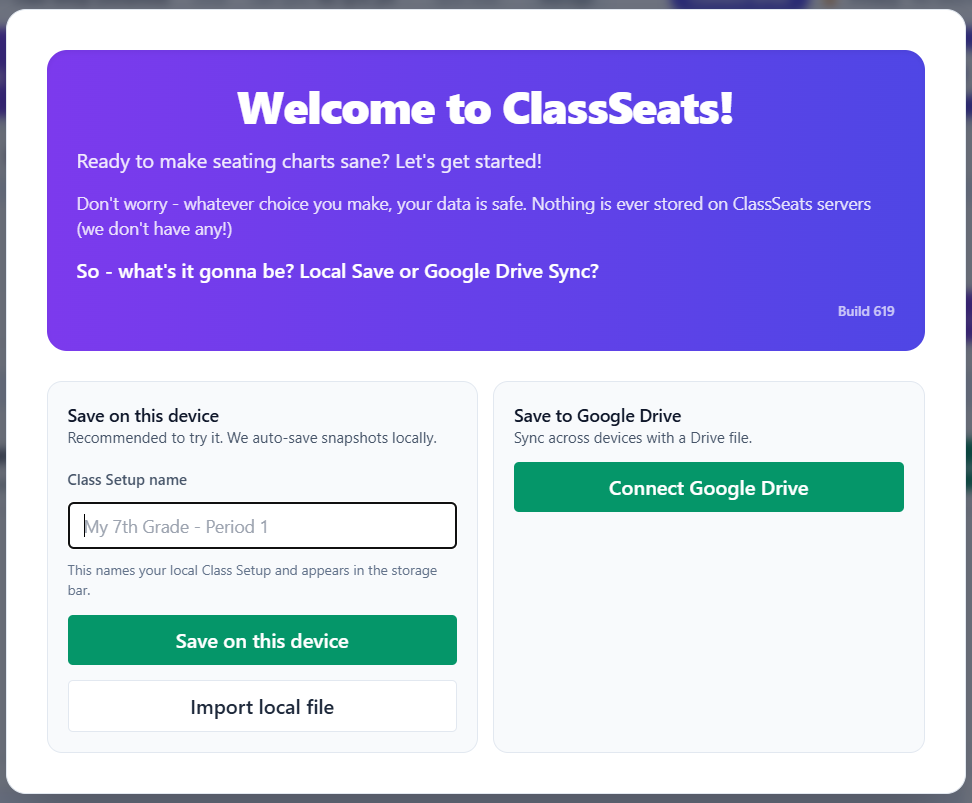
Your two save options
Save on this device
This option stores your class locally on your computer.
- Recommended if you’re just trying ClassSeats
- No Google account required
- Your class is saved automatically as you work
You’ll be asked to give your class a name. This name is only used to identify the local class setup on your device.

Save to Google Drive
This option connects ClassSeats to your Google Drive.
- Your class is backed up automatically
- You can access the same class on multiple devices
- Required if you plan to use mobile access
ClassSeats creates and manages its own folder in your Drive. It does not access or modify anything else.
Can I change this later?
Yes.
You can start with local saving and connect Google Drive later, or switch to a different Drive file at any time. Your existing classes will sync automatically when you connect.
Nothing is deleted or overwritten without you choosing to do so.
What happens after you choose
Once you select a save option, you’ll enter the ClassSeats app and begin on the Room Setup tab.
This is where you can create:
- Classes
- Seating arrangements
- Tags
- Behavior points
Only classes are required. Everything else is optional and can be set up later.

What a “class” means in ClassSeats
In ClassSeats, a class represents a group of students you work with regularly.
For most teachers, this matches a single class period or section. If you teach the same students all day (elementary, advisory, special programs), you may only need one class.
You can create as many classes as you need, and you can edit or delete them later.

Creating a class
To create your first class:
- Open ClassSeats on your computer
- Navigate to the Room Setup tab
- Find the Class Periods section at the top of the page
- Enter a class name (for example, “Bell 2 - Language Arts”)
- Click the + Period button
That’s it. Your class will appear in the class list and is ready for students.
Need more classes? Just repeat these steps as many times as you need.
What happens next
Once a class exists, you can start using ClassSeats at your own pace. Most teachers do one of the following next:
- Add students to the class
- Create a seating arrangement
- Take attendance
- Start adding quick notes
You don’t need to do everything at once.