Creating seating arrangements
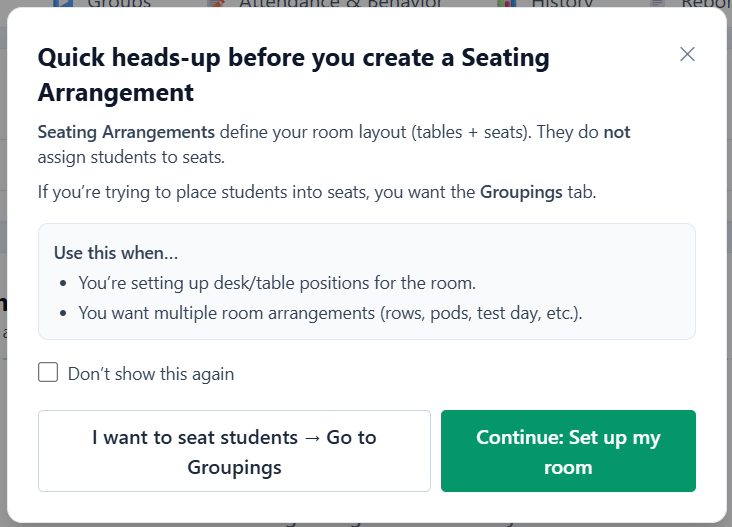
Seating arrangements define the physical arrangement of your room—desks, tables, and where they’re positioned. They do not assign students to seats. Think of this as getting your room ready before students arrive.
Before you start (important)
Seating arrangements define tables and seats only. They do not place students into seats.
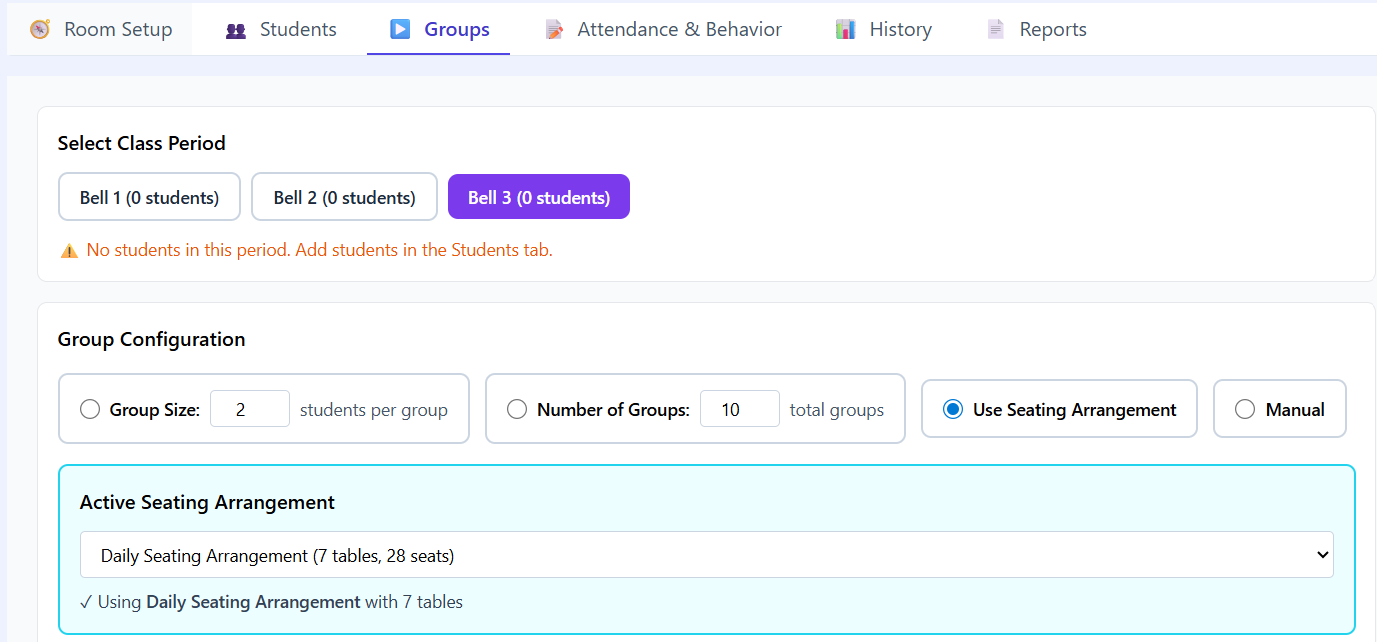
If you’re trying to assign students to seats, that happens later in the Groupings tab using the seating arrangement you create here.
This separation is intentional and gives you more flexibility.
What a “table” means in ClassSeats
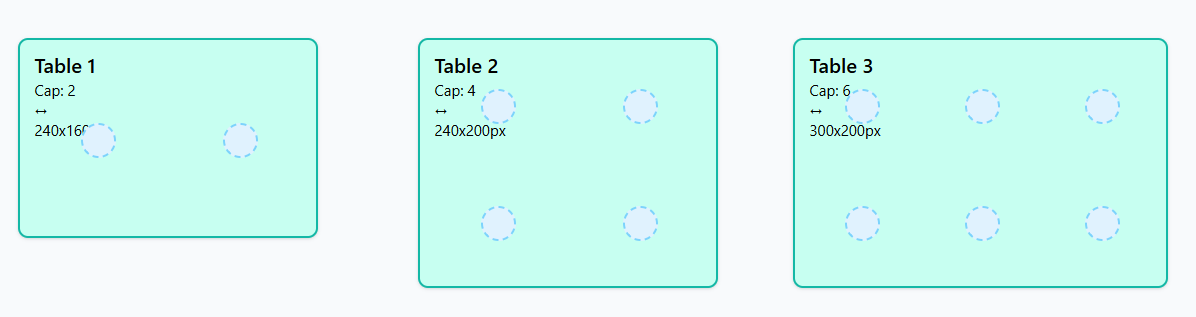
In ClassSeats, a table represents how you want students grouped—not necessarily a single piece of furniture.
Think in terms of how students work together in your room:
- If you use single desks pushed together in groups of four, create tables with a capacity of 4.
- If you pair desks for partner work, create tables with a capacity of 2.
- If you push several tables together for stations or labs, create tables with a capacity of 6 (or whatever fits your room).
The goal is to describe your room in a way that makes sense for grouping students later.
Important:
A table can have fewer students than its capacity. Capacity is the maximum number of students that table can hold, not a requirement.
Step 1: Create a new seating arrangement
To create a seating arrangement:
- Go to the Room Setup tab.
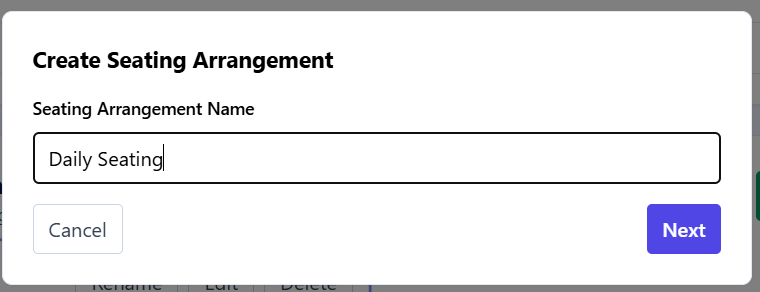
- Choose Create Seating Arrangement.
- Enter a name for the arrangement (for example, “Rows,” “Pods,” or “Test Day”).
- Enter how many tables you want.
- Enter the capacity per table.
- Click Create.
Most teachers only create a few seating arrangements for a class—often just one or two.
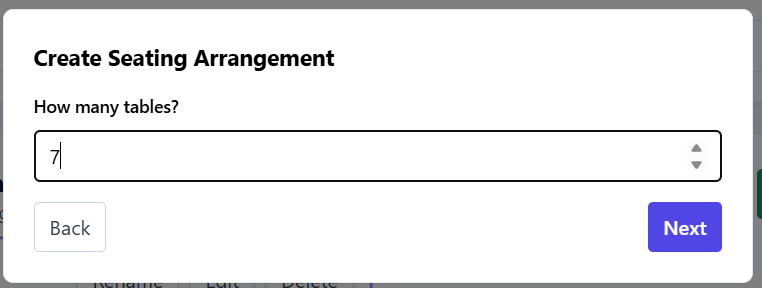

Step 2: Arrange tables in the room
After creating the arrangement, you’ll see the arrangement editor.
Here you can:
- Move tables into position
- Adjust spacing
- Resize or reposition tables as needed
Once a table is selected, table controls appear at the top of the editor. These controls let you move the table (you can also use the arrow keys on your keyboard) and adjust its properties.
Don’t worry—nothing is locked in stone. Feel free to try things out. More detailed options are covered in the Advanced Seating Arrangements article.
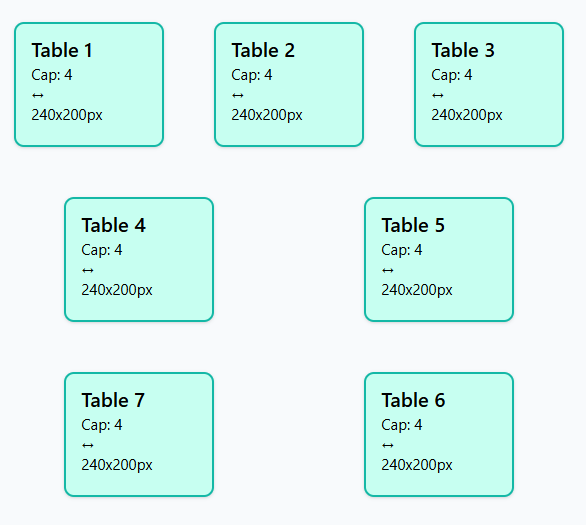
Step 3: Save and reuse your arrangement
Seating arrangements are saved when you click the Done button at the top of the editor.
You can:
- Switch between different arrangements
- Edit existing arrangements
- Create alternate layouts for special situations (testing, labs, group work)
Most teachers set this up once and rarely need to change it.
What happens next
Once your seating arrangement is set up:
- Add students to your class (if you haven’t already).
- Go to the Groupings tab to place students into seats using your seating arrangement.
This is where seating charts actually happen.