Viewing student tags on seating charts
Student tags can appear directly on seating charts so you can keep helpful information visible while you arrange students, teach from full screen view, or print a seating chart.
Step 1: Open a seating chart
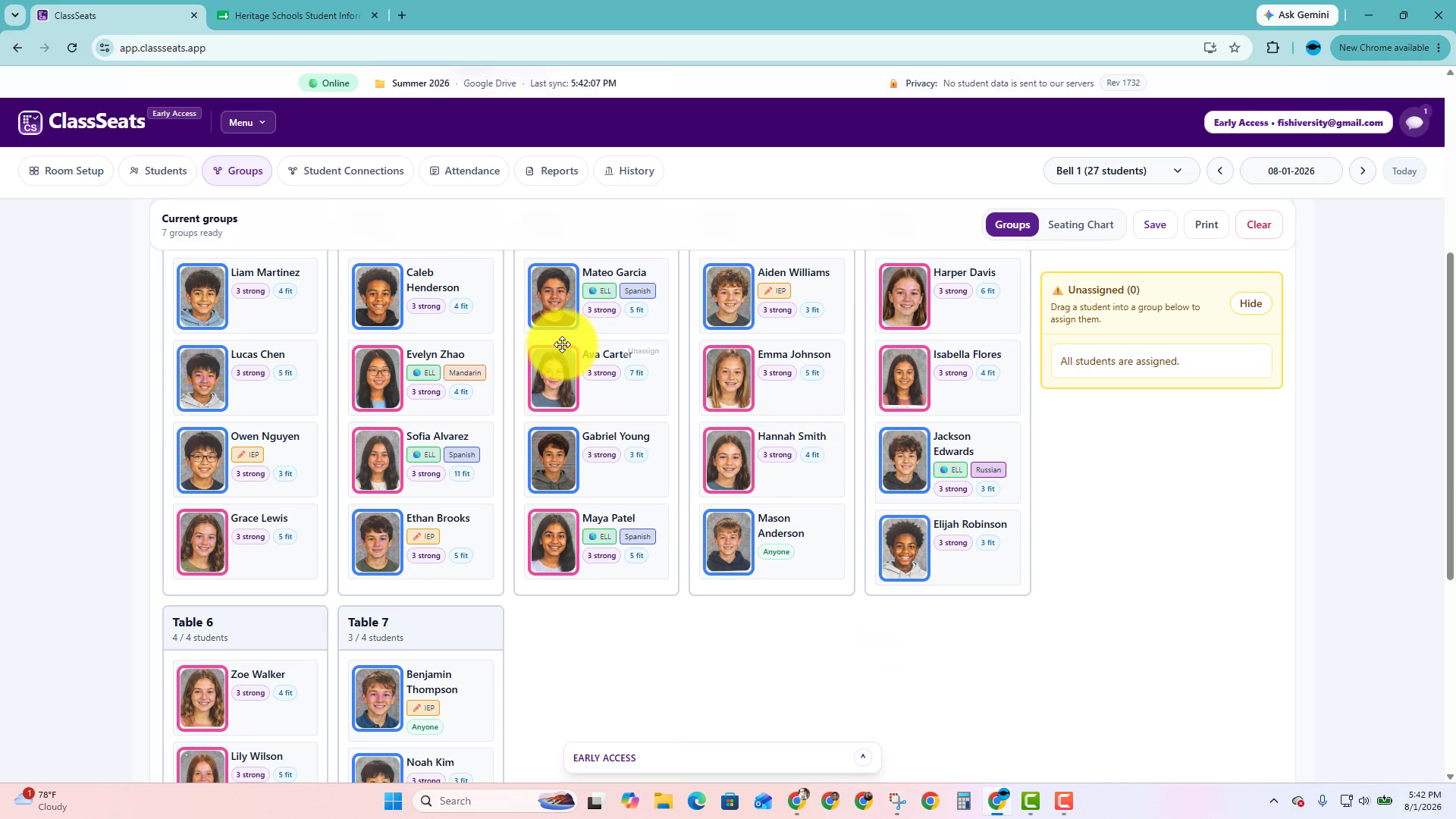
Go to Groups and open your seating arrangement. Student tags appear as chips in the group view.
When you choose Seating Chart, tags can also appear as small tag markers on student cards.
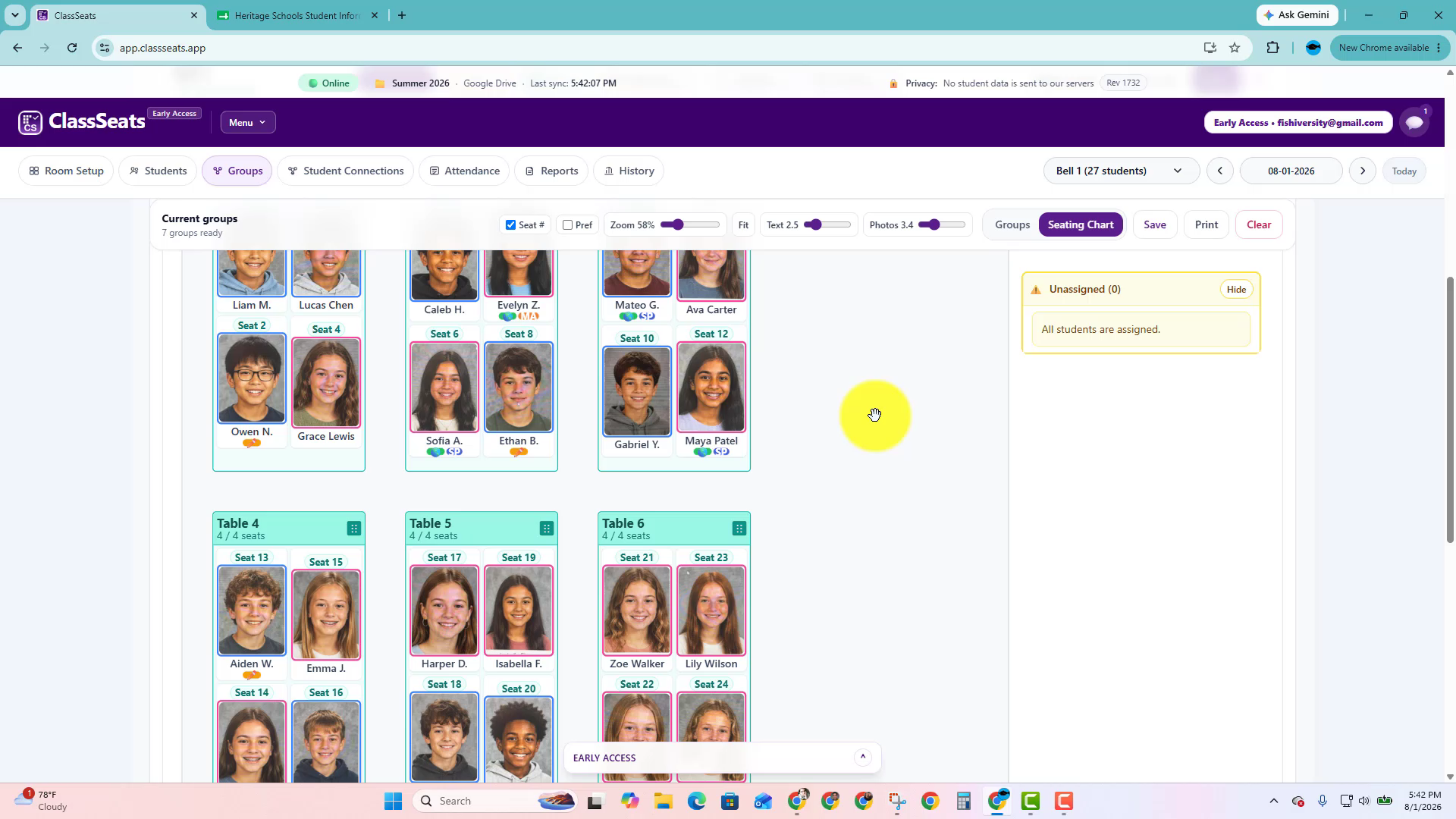
Step 2: Filter the chart with the Tag Legend
Use the Tag Legend above the seating chart to focus on students with a specific tag.
For example, click IEP, ELL, or a language tag to make those students easier to find.
Step 3: Show or hide tags on the chart
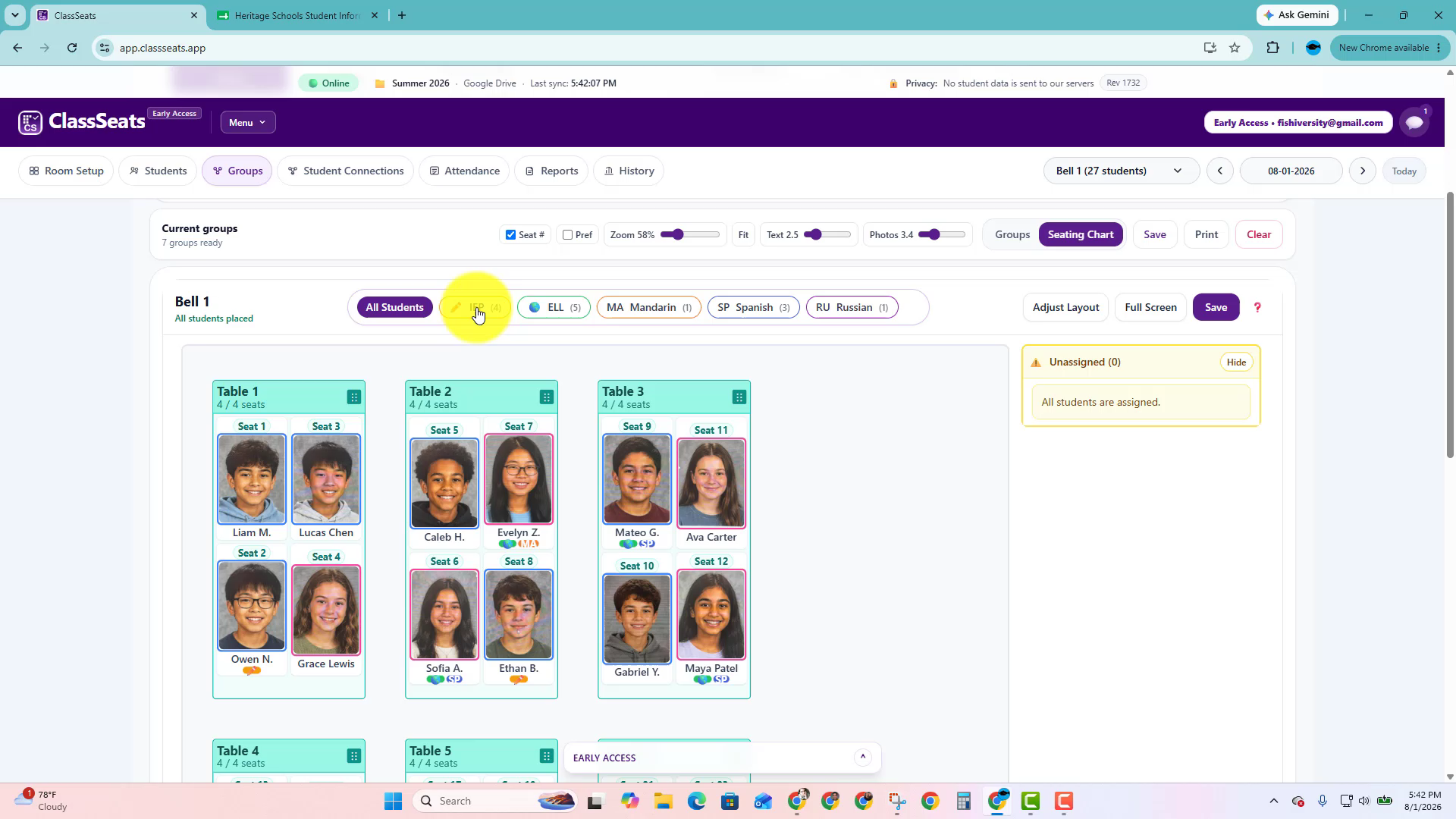
Use the display controls to decide what appears on the seating chart.
You can show or hide student tags depending on what you need for the moment.
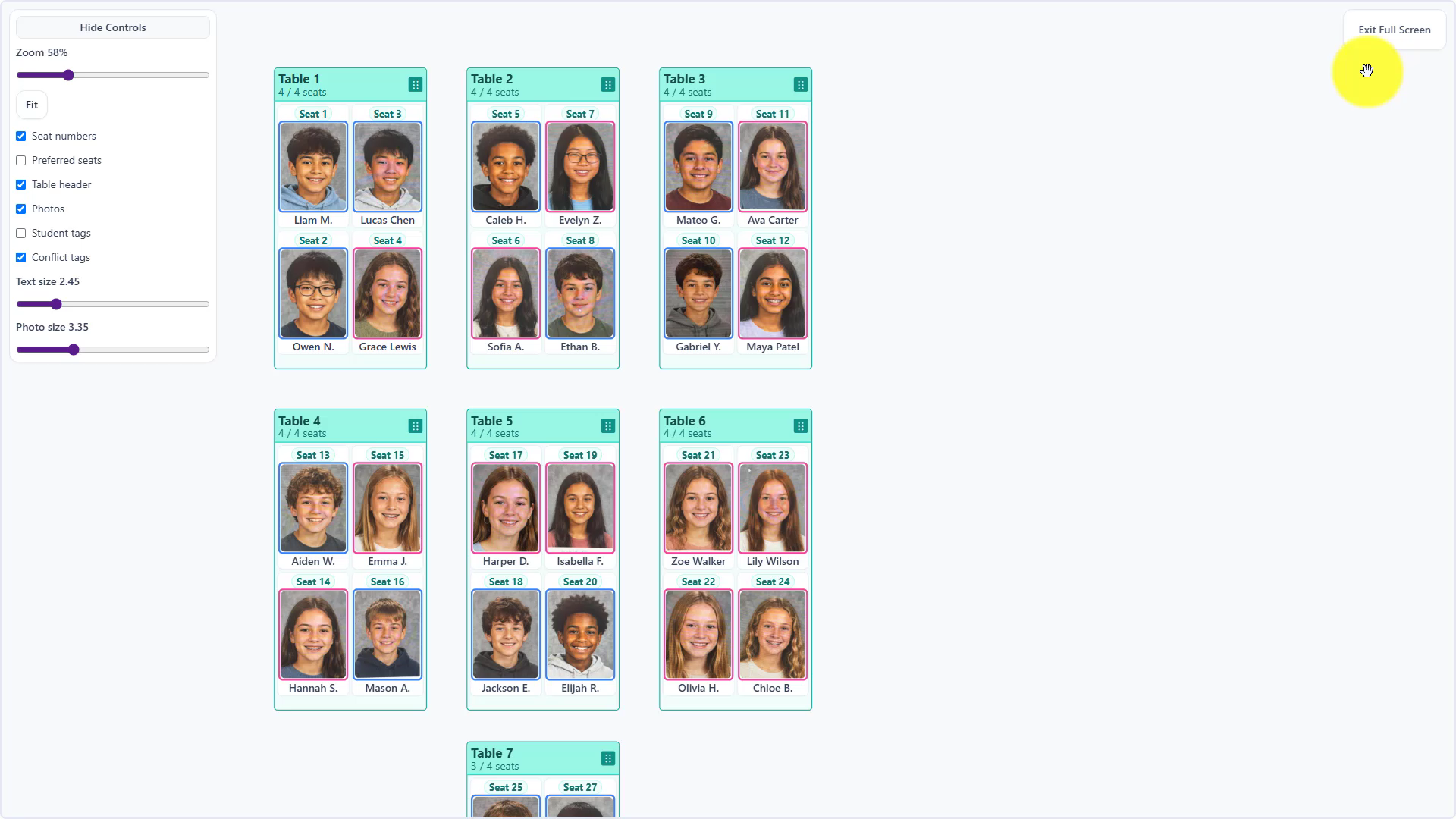
Step 4: Use tags in full screen view
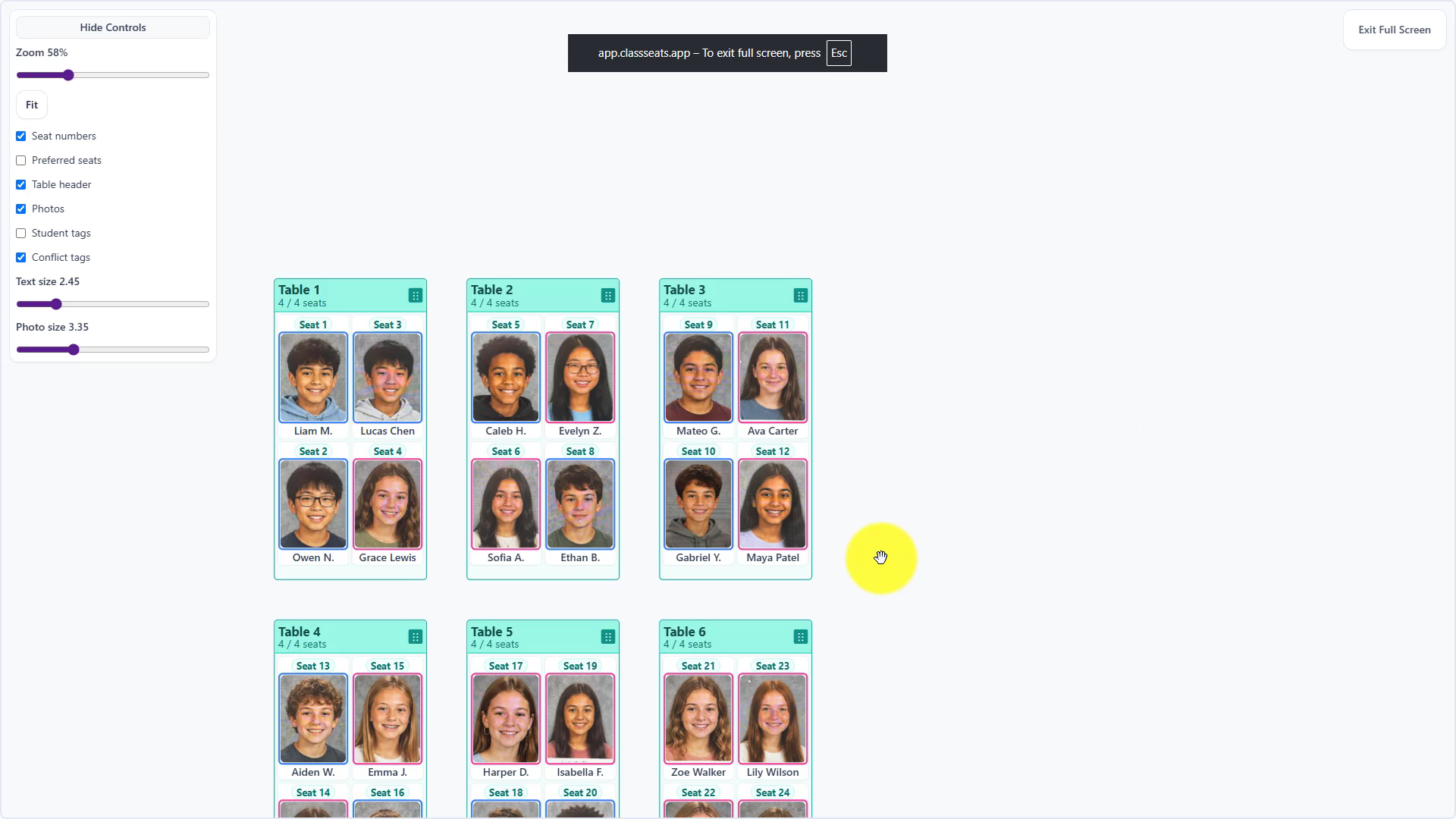
Click Full Screen to use the seating chart while teaching.
In full screen view, use the left-side controls to show or hide student tags, seat numbers, photos, table headers, and other details.
Step 5: Print a seating chart with tags
Click Print to open the Print Layout Editor. In the print options, turn on Show tags if you want student tags included on the printed seating chart.
When tags are selected, a tag legend prints at the top of the seating chart.
Video demo
Watch how to view tags on a seating chart, use the Tag Legend, adjust full screen display options, and print a seating chart with tags.
Next: Back to Student Tags