Using student tags in Smart Grouping
Use Tag Balancing when you want ClassSeats to consider student tags while it creates groups. Tags can help you spread certain students across tables, build groups around shared interests, or create a more thoughtful mix of support needs and student strengths.
Before you start
Tag Balancing works with the student tags already saved in your class.
Before generating groups, create or assign the tags you want to use. You can do that from an individual student card, the Tag Matrix, or while importing students.
Then go to the Groups tab, choose your grouping settings, turn on Table Tag Balancing, and click Add Rule.
Example 1: Spread chatty students across groups
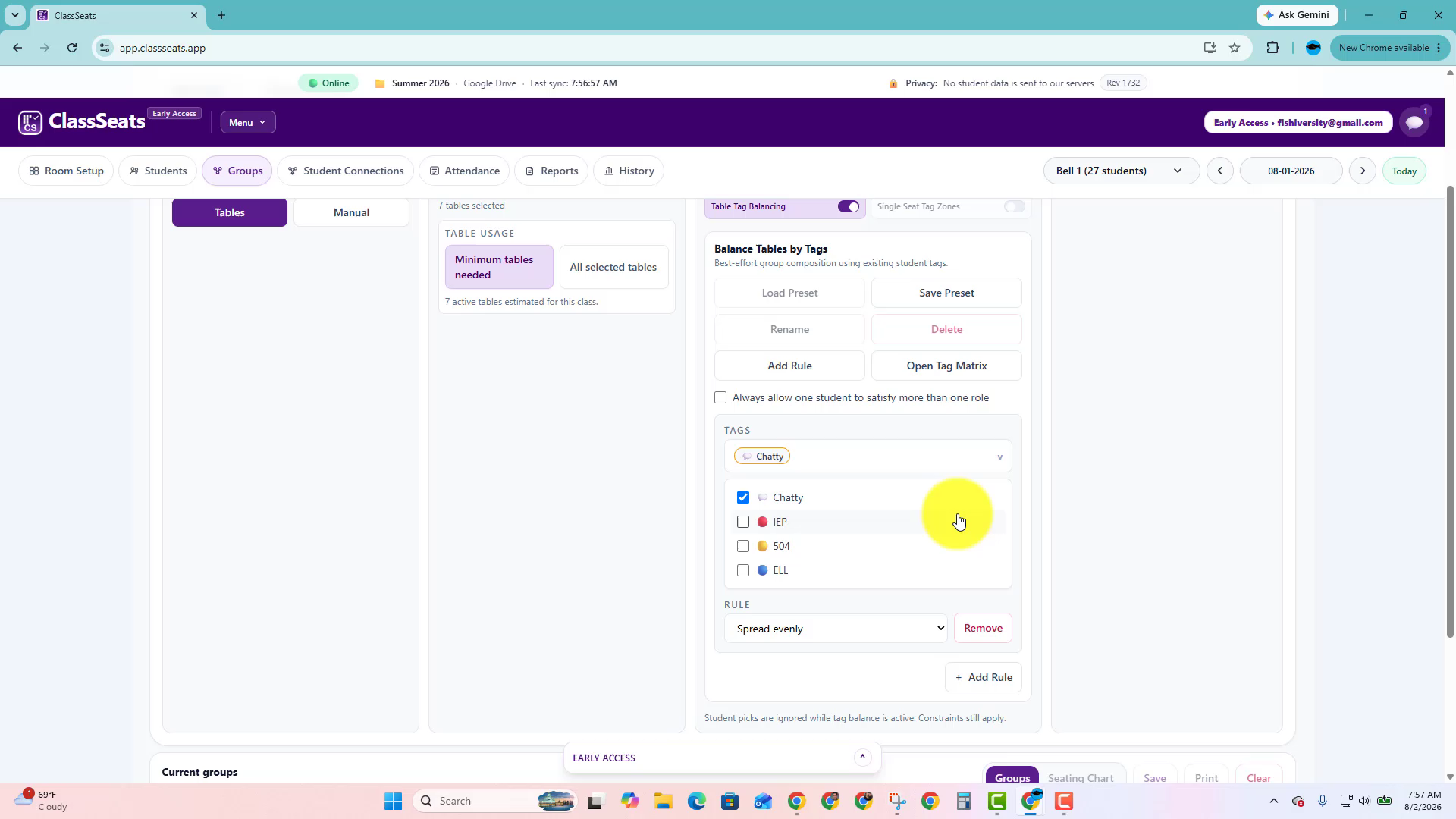
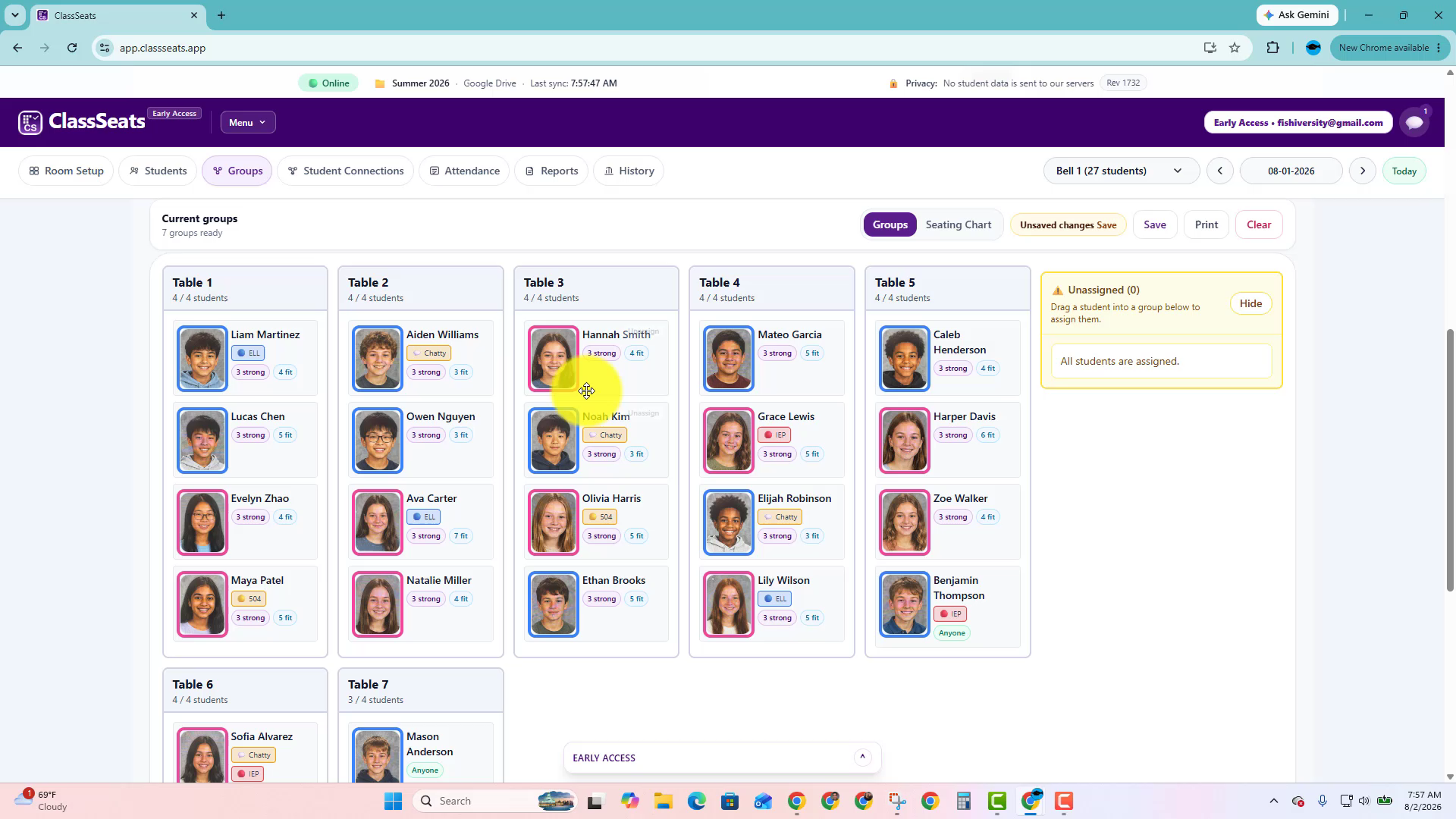
If a few students tend to pull each other off task, create a tag such as Chatty and use Spread evenly.
ClassSeats will try to avoid placing too many students with that tag at the same table. This can be helpful when students are still able to work with anyone, but you want to avoid accidentally creating one very talkative group.
After groups are generated, scan the tables to make sure the result works for your class.
You can still drag students between groups if you need to make a small adjustment.
Example 2: Group students around shared interests
Interest tags can help with project groups, classroom community activities, book clubs, discussion groups, or choice-based work.
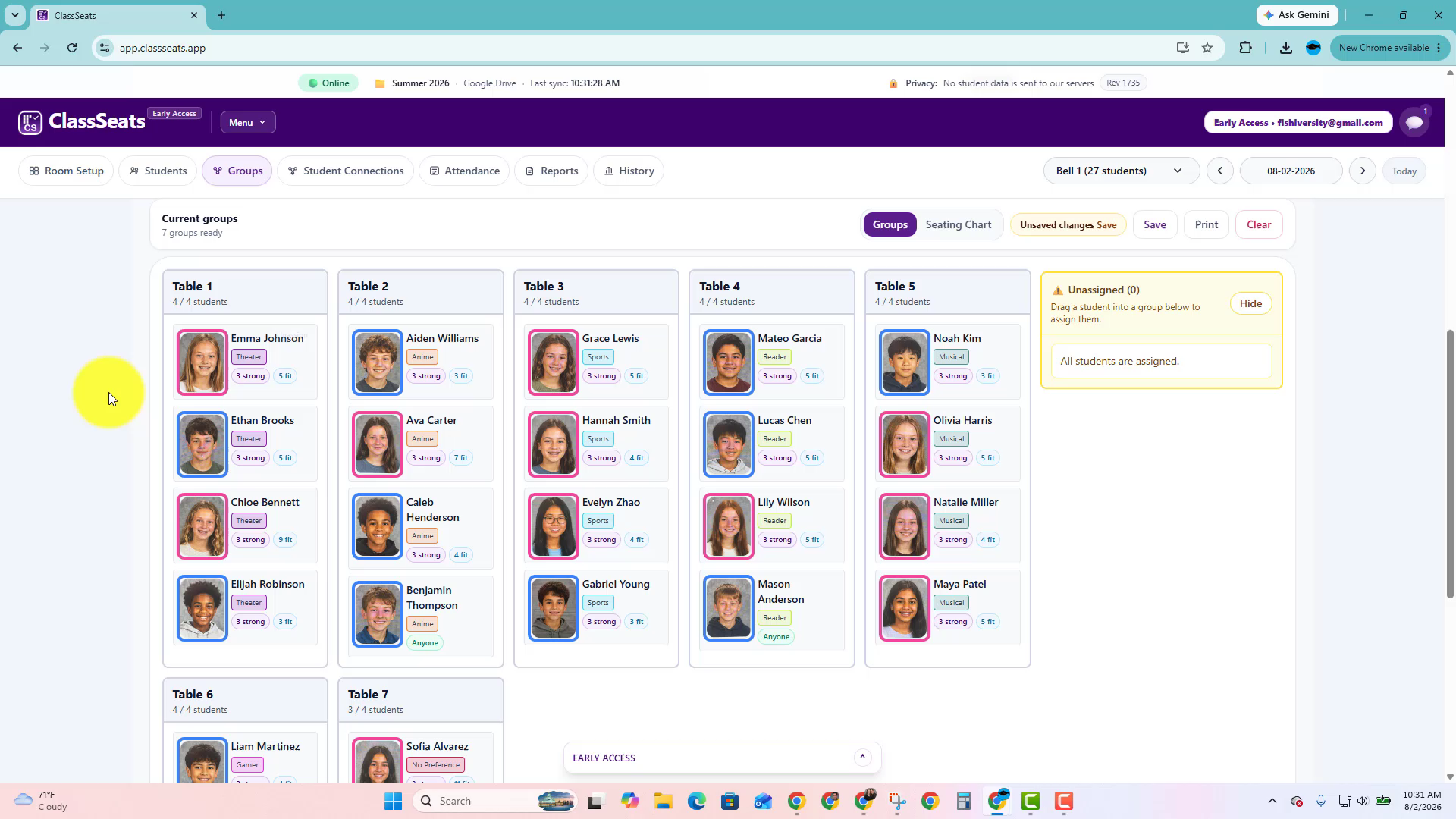
In this example, tags such as Anime, Theater, Sports, Gamer, Reader, and Musical give ClassSeats useful classroom context.
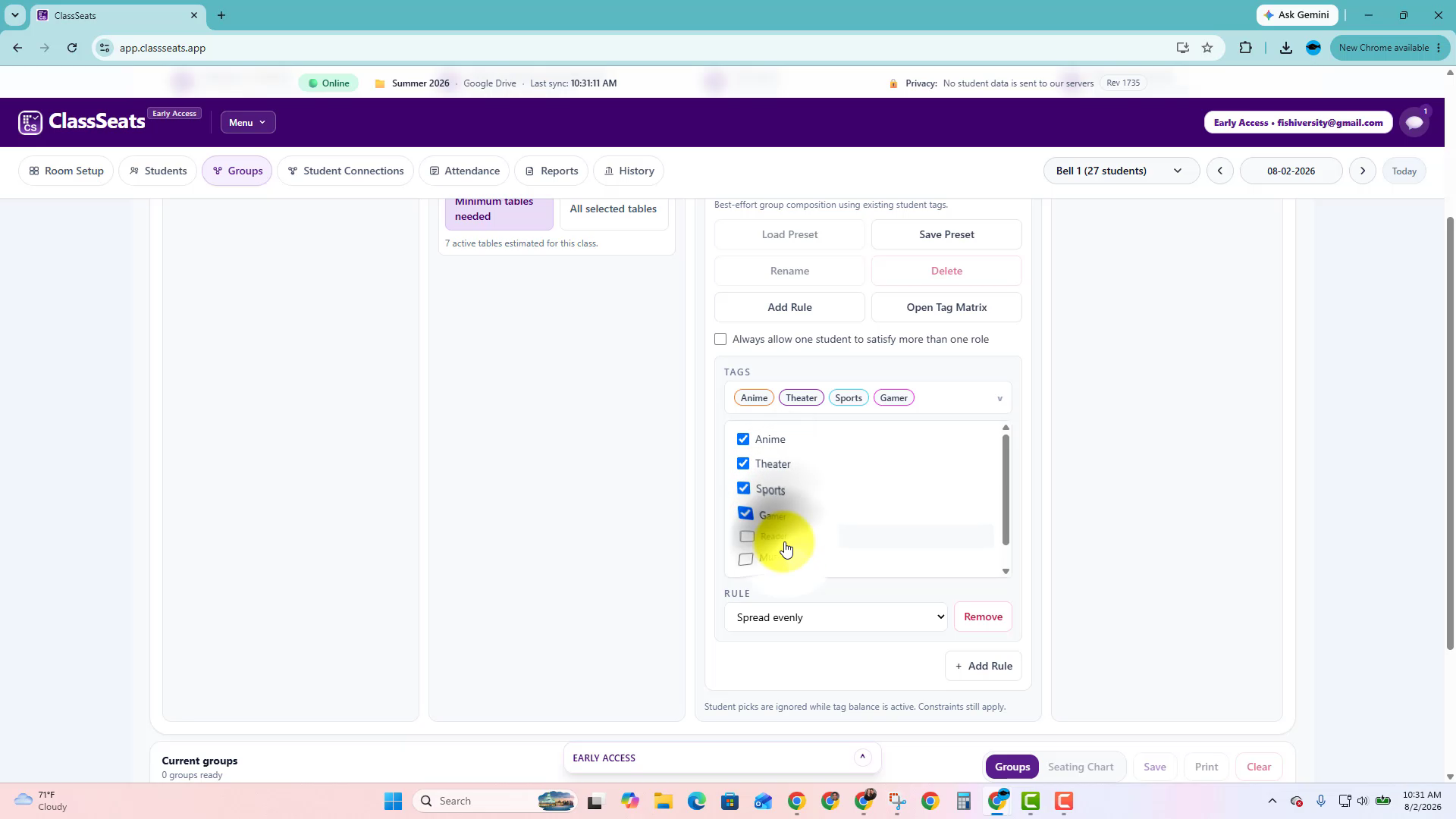
Tag Balancing can then use those tags to help form groups around the interests you choose.
This gives you a better first draft when shared interests are part of the reason for the activity.
Example 3: Mix support needs and peer leaders
For academic groups, you might want each table to have a workable mix of students who need support and students who can help keep the group moving.
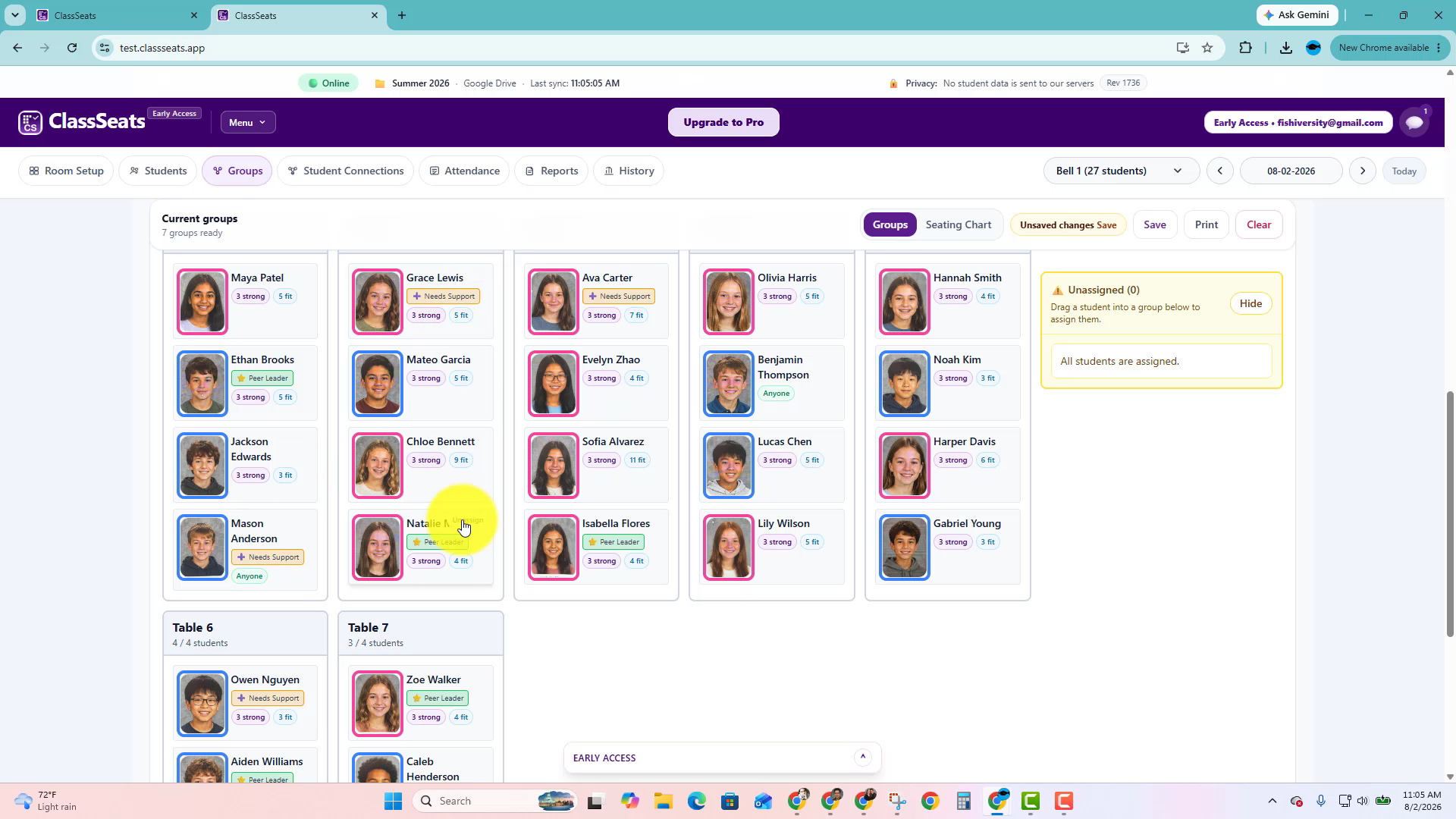
In this example, Needs Support and Peer Leader are used together.
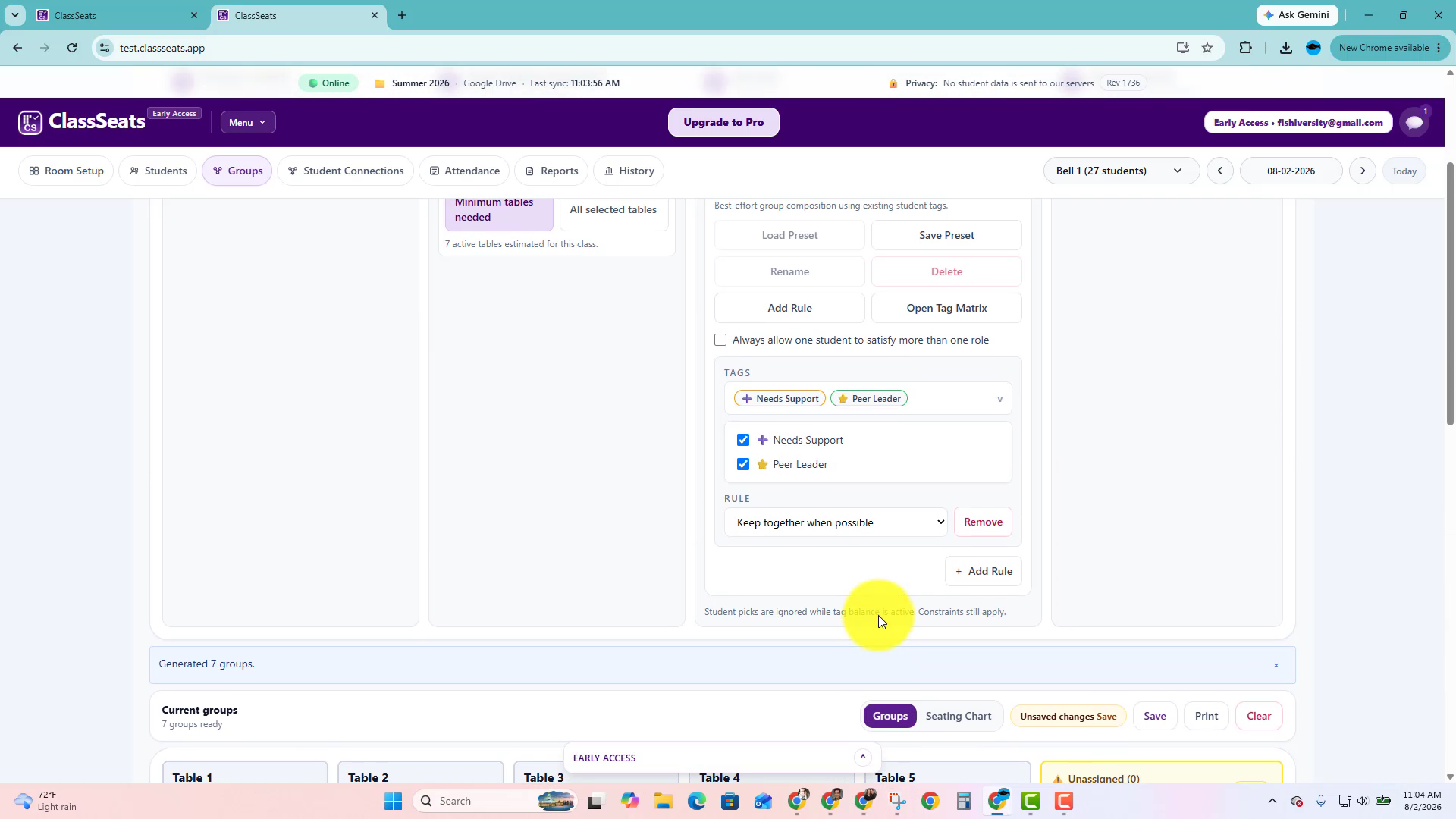
ClassSeats can use those tags to create groups that are more balanced for classroom work.
As always, review the groups before saving them.
Example 4: Balance several tags at once
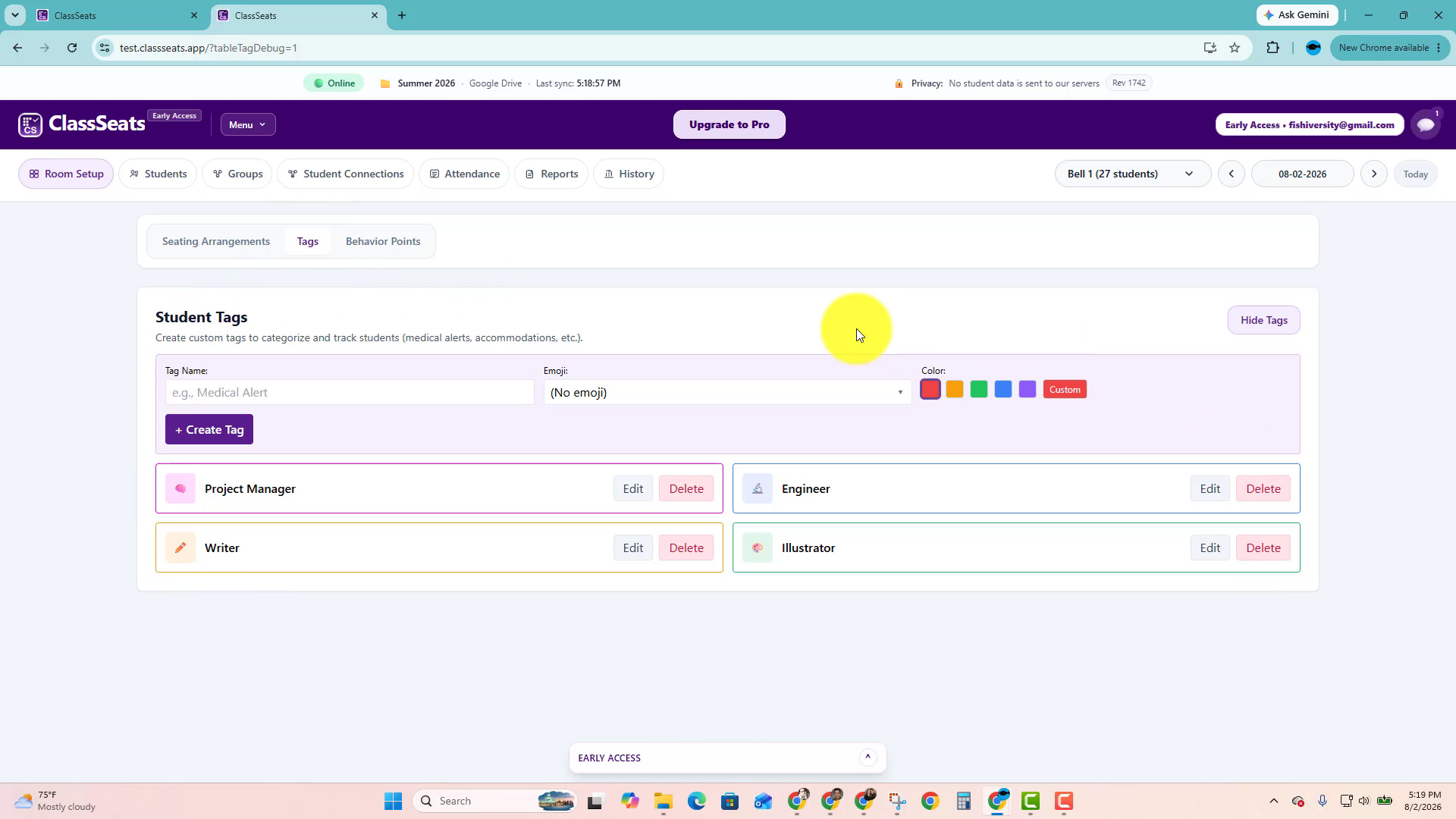
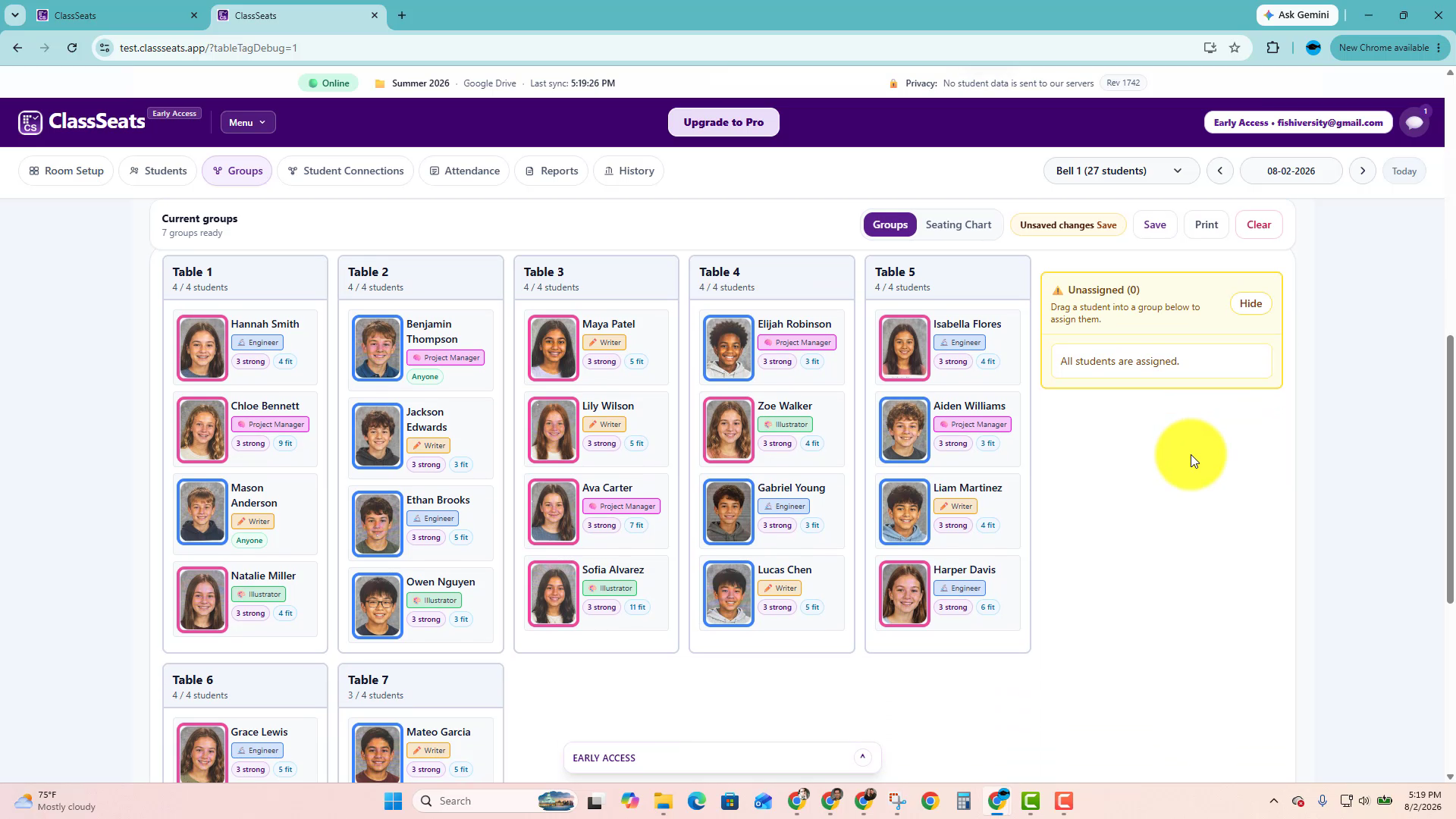
For project work, you may want each group to include a mix of student roles. In this example, students have tags such as Project Manager, Engineer, Writer, and Illustrator.
These tags give ClassSeats role information it can use when groups are generated.
Use Spread evenly when you want ClassSeats to try to distribute those roles across the groups.
This gives you a stronger first draft when students will need different strengths at the same table.
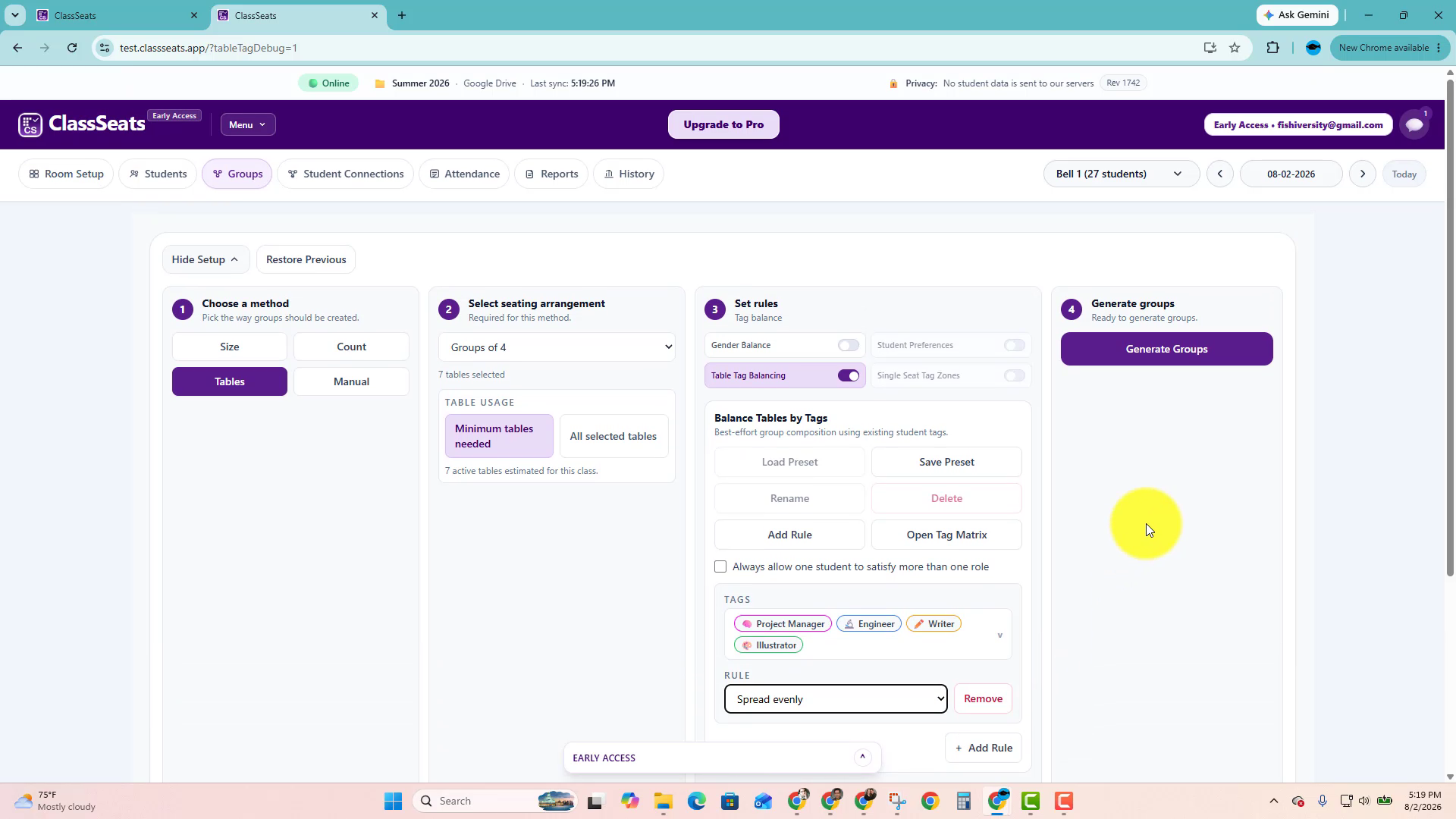
Once the groups are generated, check whether each table has the role mix you were hoping for.
If a table needs a small change, drag students where they need to go before saving.
Next: Back to Student Tags