Importing student tags
If your class list includes helpful information like IEP, 504, ELL, language, interests, or accommodations, ClassSeats can turn that information into student tags during import. This is an advanced version of importing students: you paste the class list, match the student names, then choose which extra values should become tags.
Step 1: Paste your class list
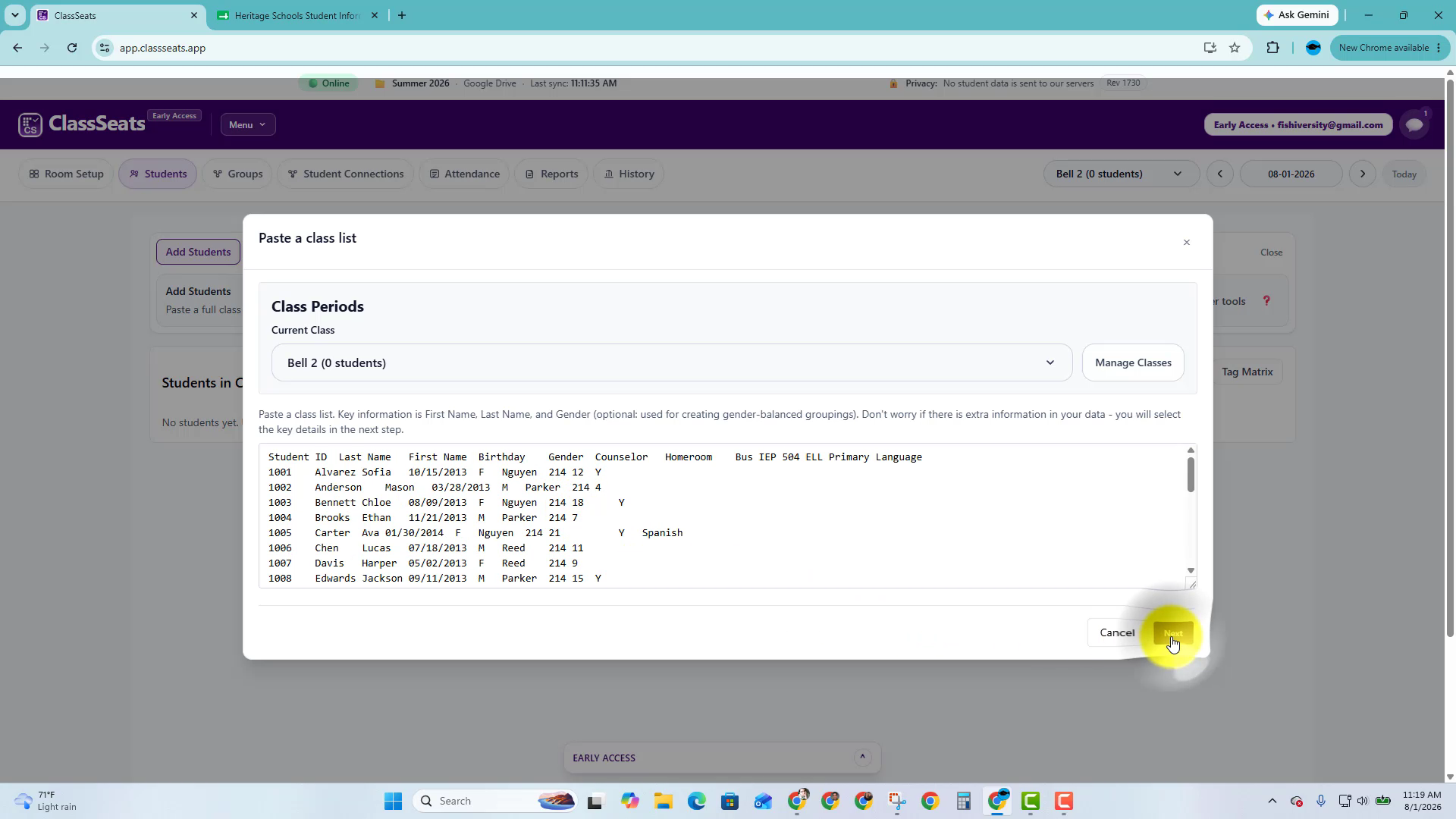
Start from the Students tab and choose Paste a full class. Select the class period, paste your roster, then click Next.
Your pasted list can include extra columns. ClassSeats will ask which parts are student names first, then which extra information should become tags.
Step 2: Match the student name columns
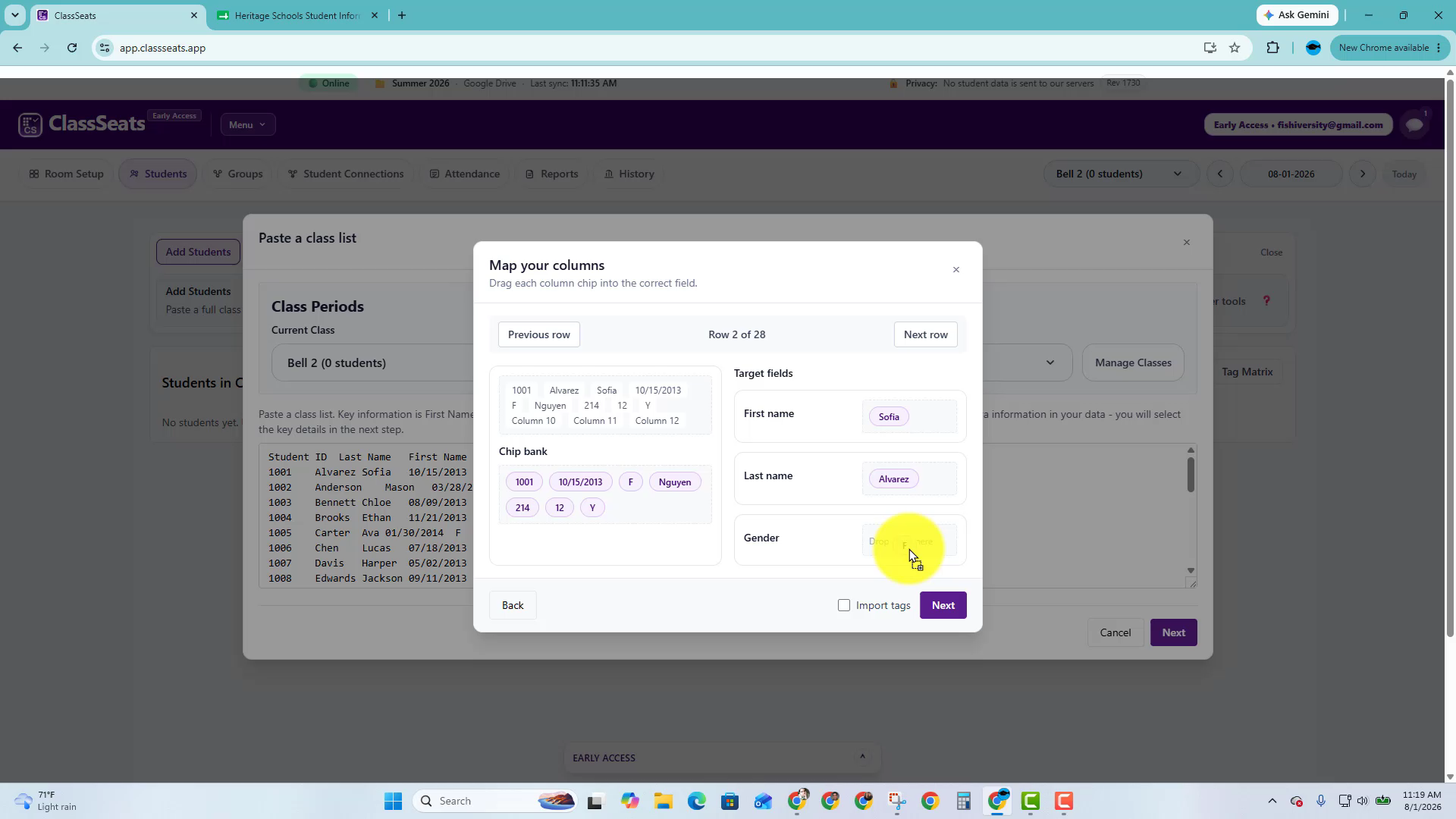
Match the student information the same way you would for a normal roster import. Drag the sample row pieces into First name, Last name, and optional Gender.
Before clicking Next, check Import tags.
Step 3: Choose a column to turn into tags
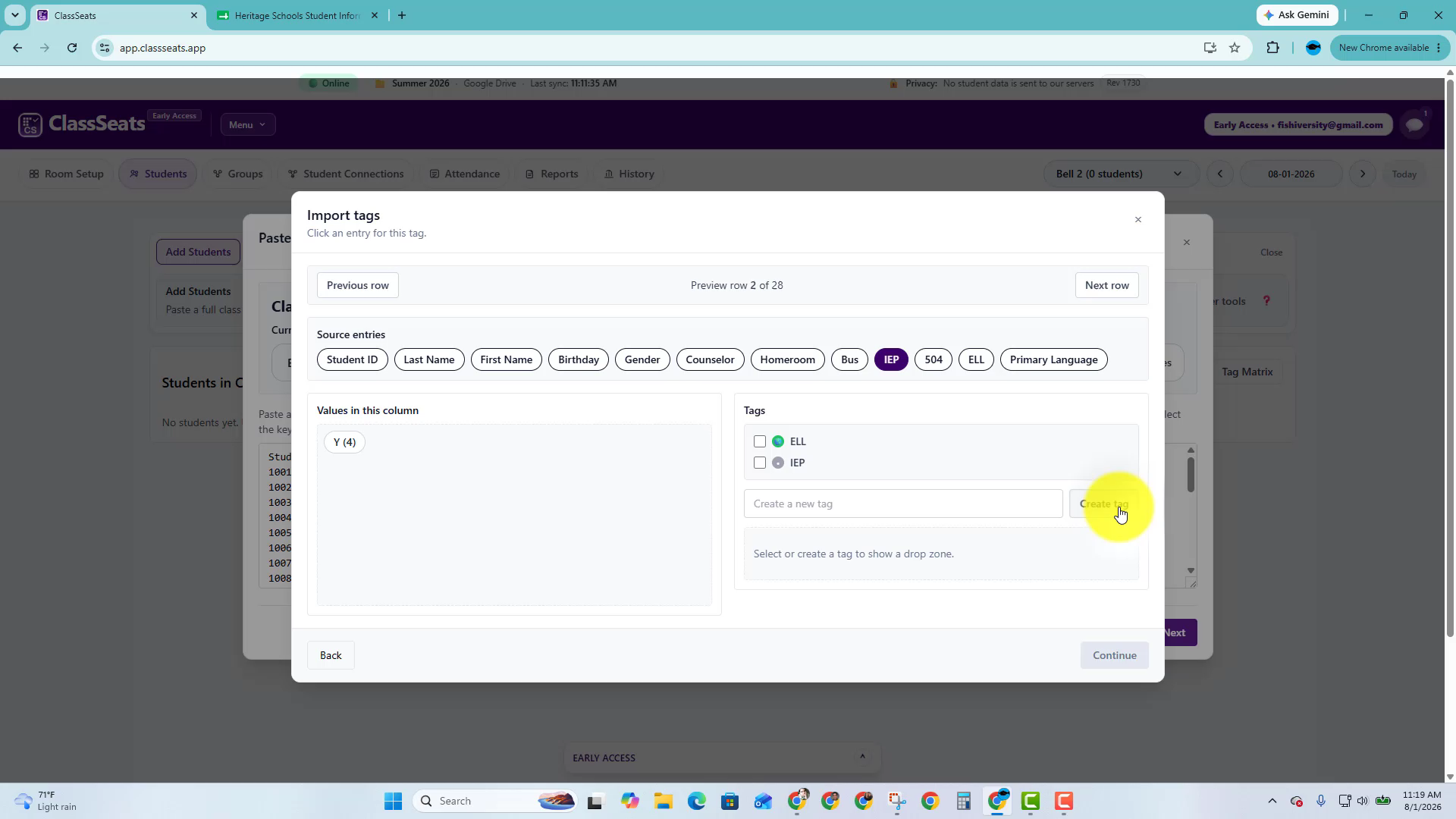
ClassSeats shows the extra columns from your pasted list as source entries. Choose one column to work with first, such as IEP, 504, ELL, or Primary Language.
Think of this part as column → value → tag. You choose a column, look at the values in that column, and tell ClassSeats which tag each value should use.
Step 4: Choose or create the tag
After you choose a column, select the tag that should be used for that information. You can use an existing tag, or create a new one right from this window.
For example, if you choose the IEP column, you might select your existing IEP tag.
Step 5: Drag the value into the tag
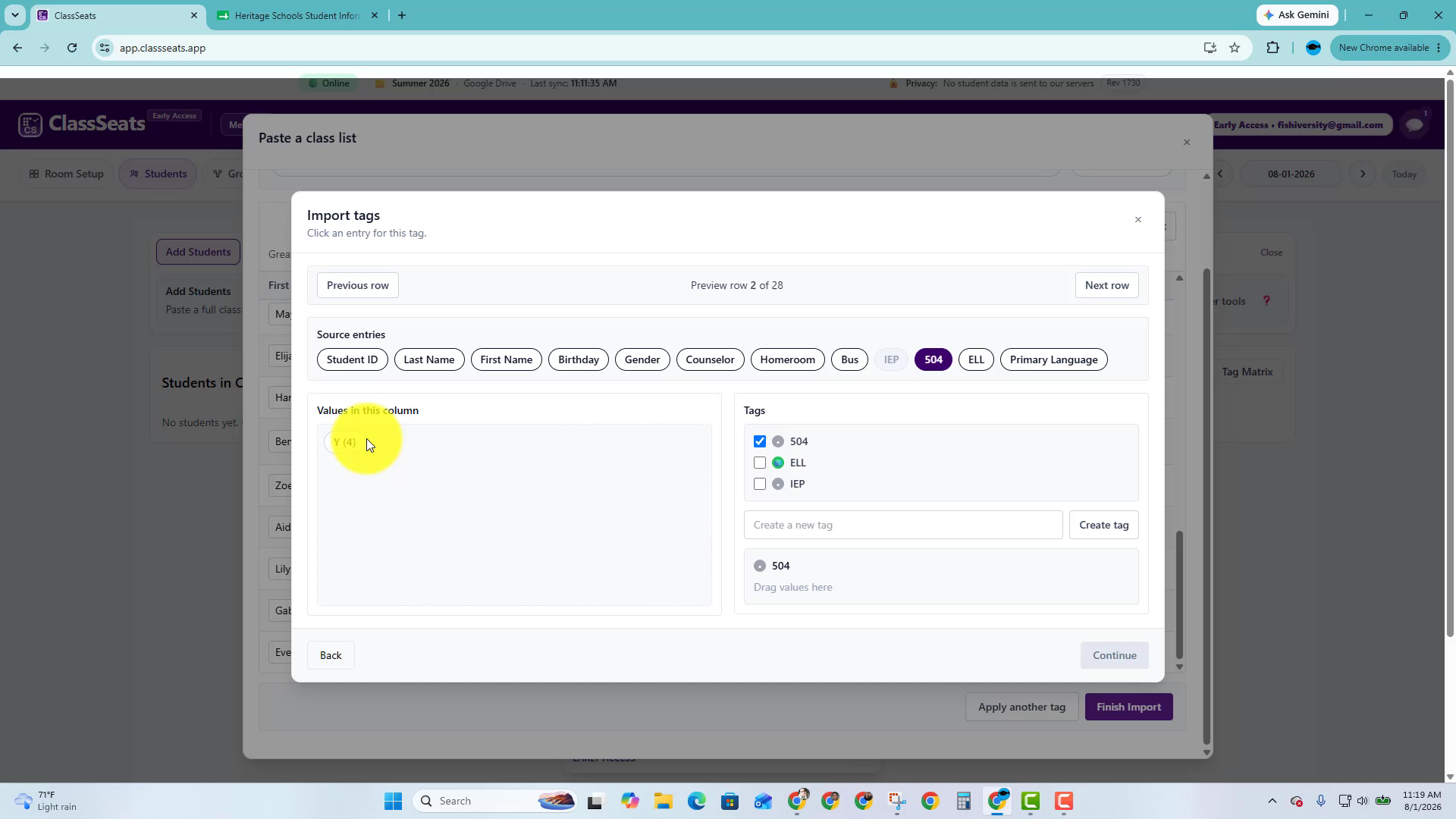
Drag the value from the column into the tag box where it belongs.
For example, if the IEP column uses Y to mark students with IEPs, drag Y into the IEP tag box. ClassSeats will apply the IEP tag to each student who has Y in that column.
Step 6: Repeat for values that need different tags
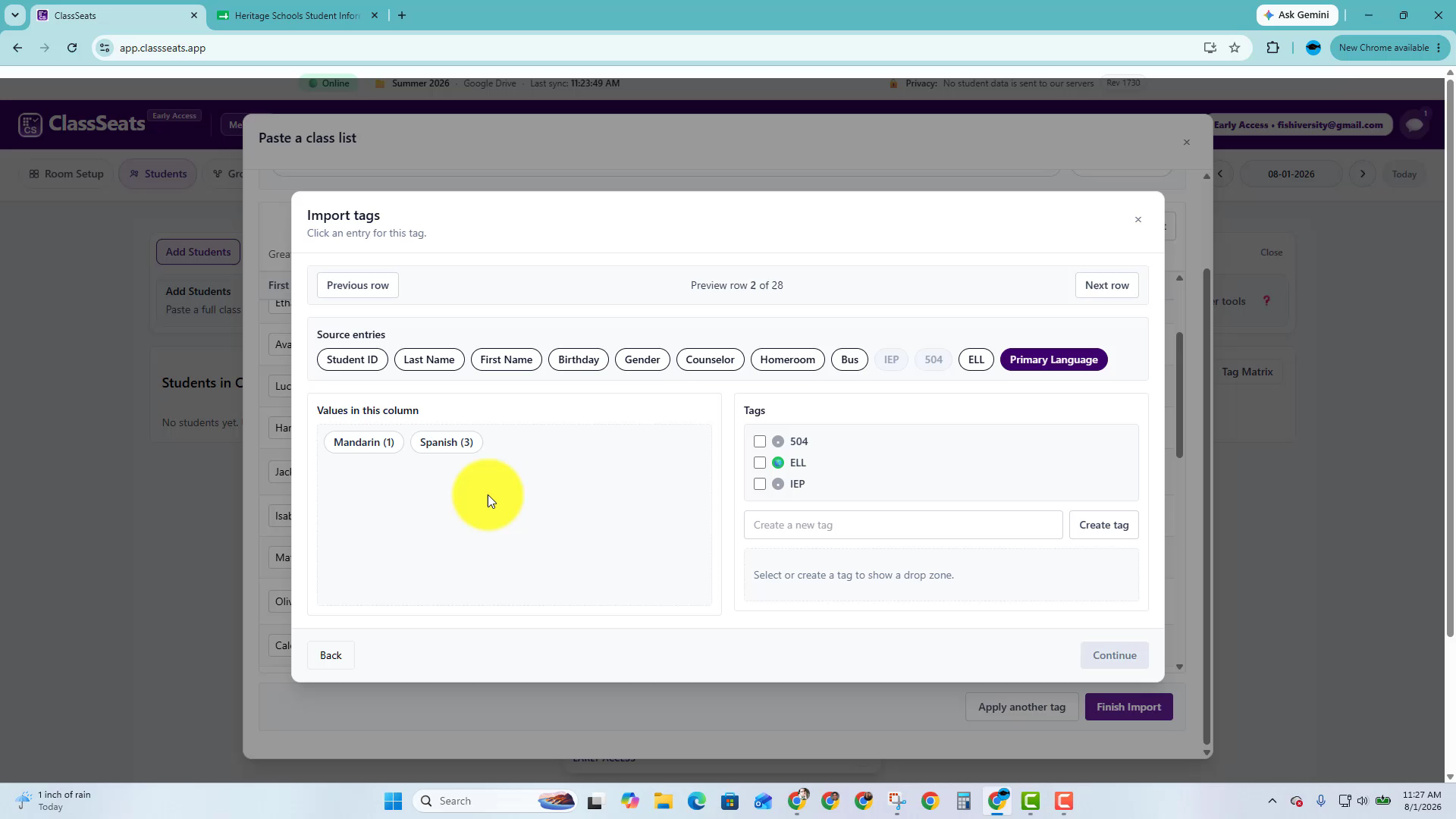
Some columns have more than one meaningful value. For example, Primary Language might include Spanish and Mandarin.
In that case, create or select a separate tag for each value, then drag each value into the matching tag box.
Step 7: Decide what to do with blank values
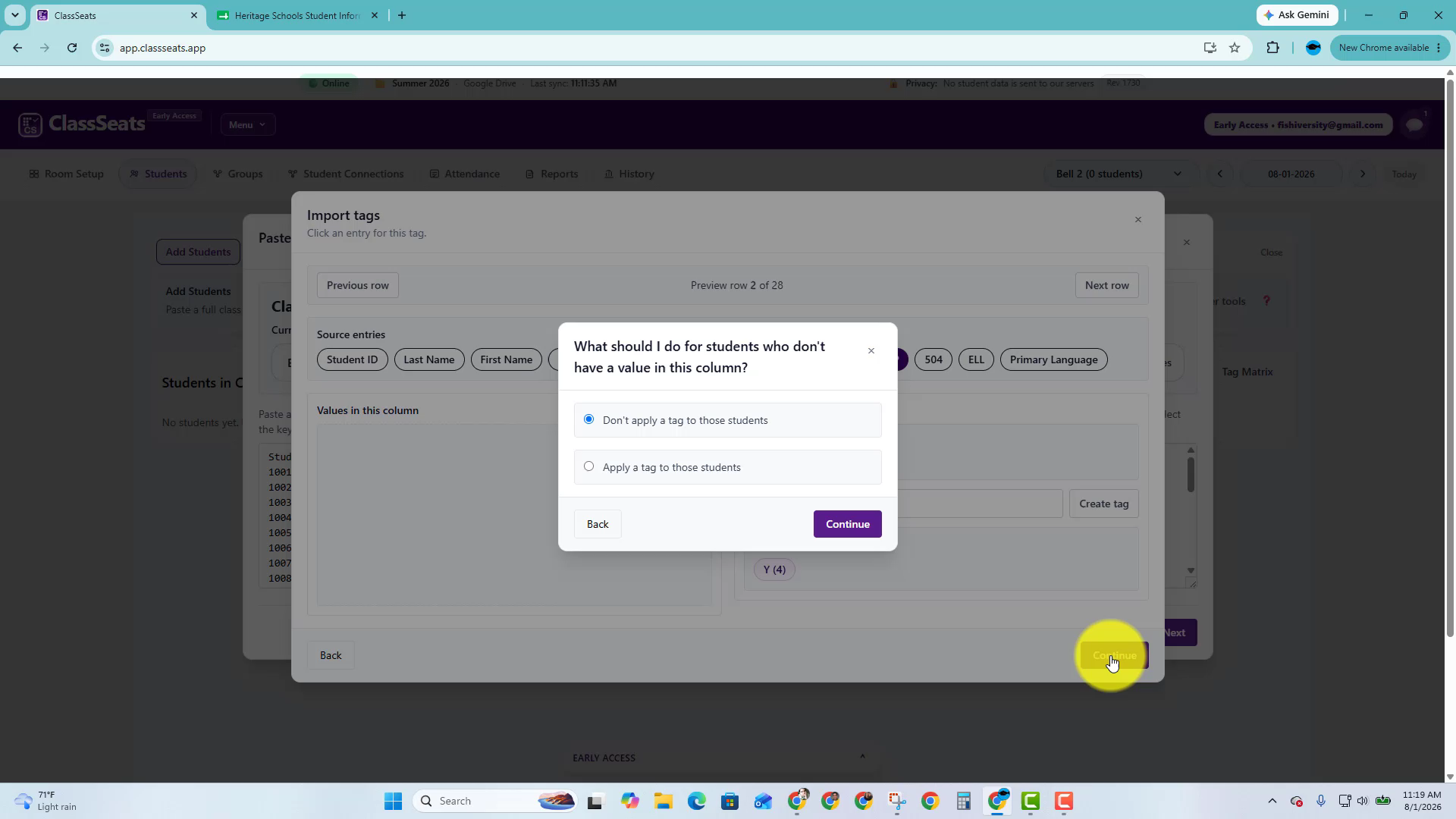
If some students do not have a value in the selected column, ClassSeats asks what to do with those blank entries.
Most of the time, you’ll leave those students untagged for that column.
Step 8: Review and finish the import
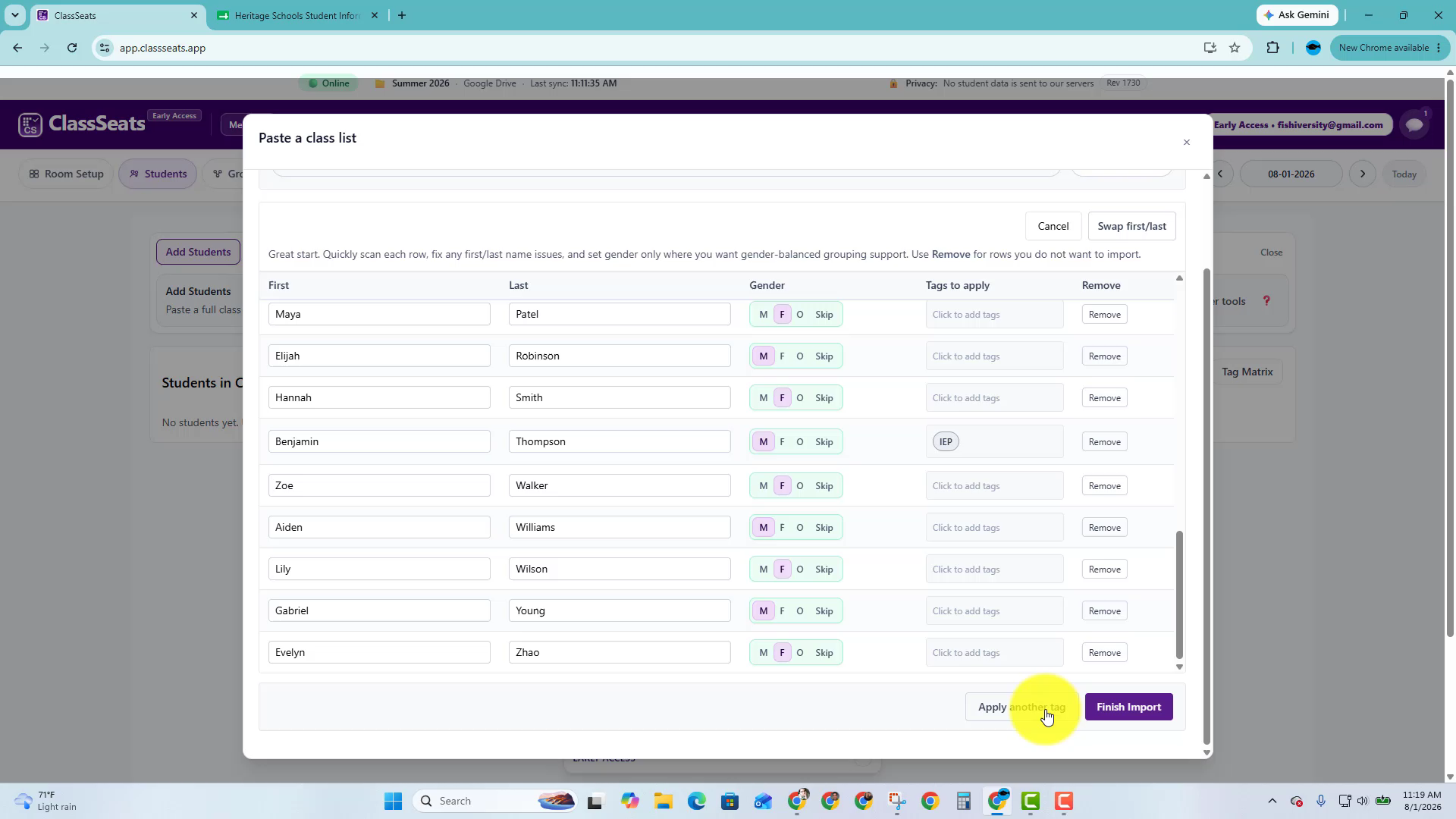
After you map a tag, ClassSeats returns to the review table. The Tags to apply column shows which tags will be added to each student.
You can click Apply another tag to map another column, or Finish Import when everything looks right.
Video demo
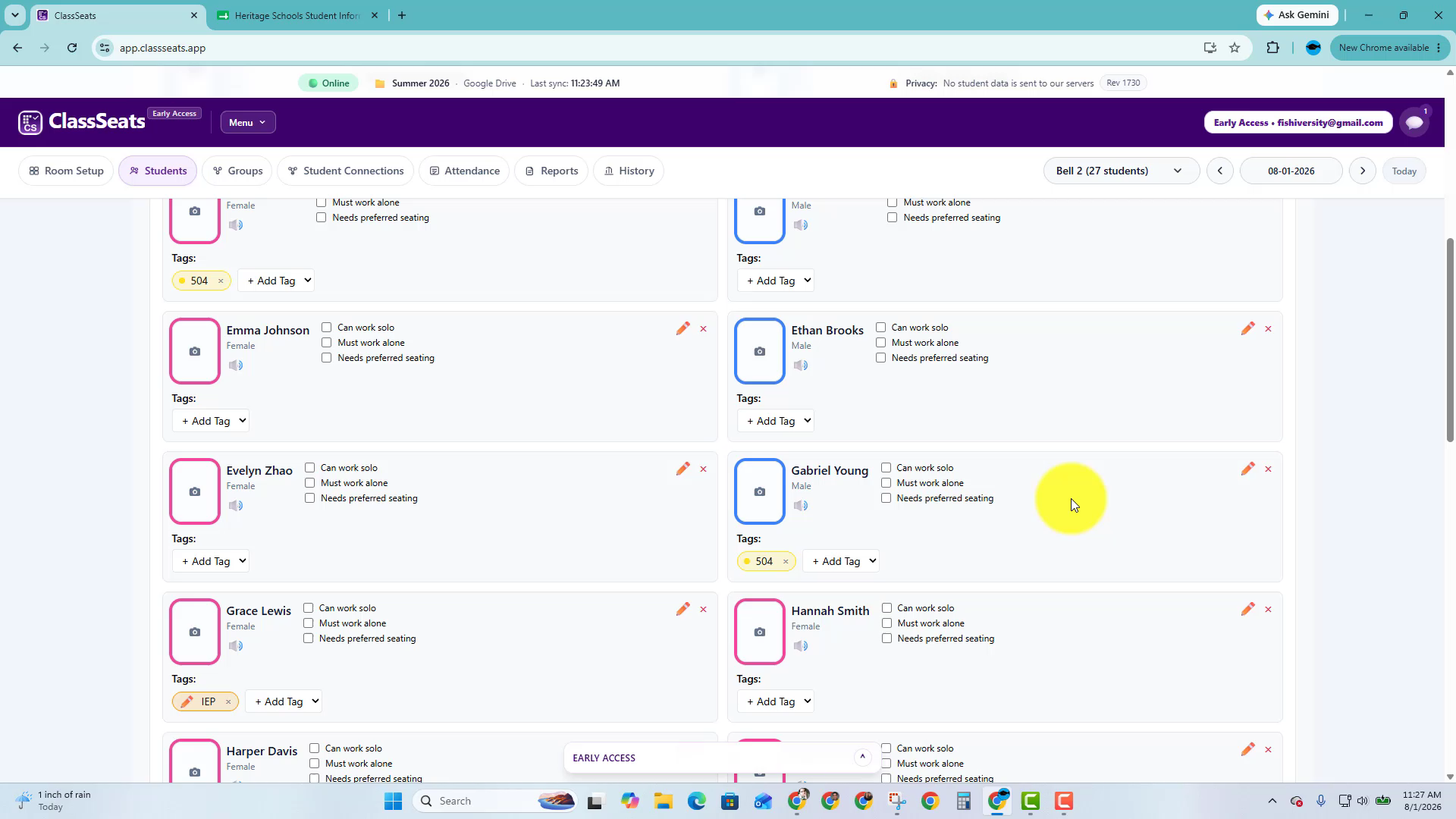
Watch the full process of pasting a roster, choosing tag columns, reviewing the tag assignments, and finishing the import.
Next: Back to Student Tags