How do I resize a table in a seating chart?
Use this when you want a table to be wider or taller for one class period in your current seating chart view. This applies only to that period and that grouping.
Resize a table
- Open your seating chart (from Groups → View Seating Chart).
- Find the table you want to resize.
-
Use the buttons at the top of the table to adjust size:
- +W / -W to change width
- +H / -H to change height
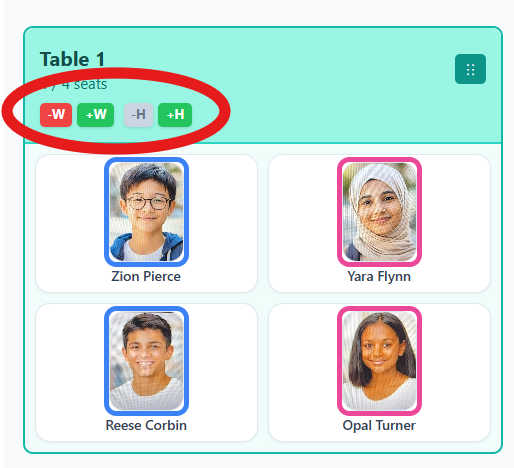
Use the width and height buttons to resize tables. - Click Save & Close to save your changes.
Tip: Tables have a minimum size based on how many students are seated there, so student cards still fit.