How do I move a table in a seating chart?
Use this when you want to reposition a table for one class period in your current seating chart view. This applies only to that period and that grouping.
Move a table
- Open your seating chart (from Groups → View Seating Chart).
- Find the table you want to move.
-
Click and hold the table header, then drag the table to its new location.
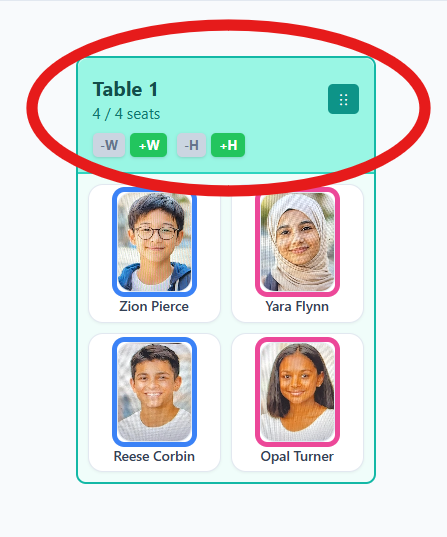
Drag tables by the header area. - Release to drop the table.
- Click Save & Close to save your changes.
Tip: This move is saved only for the current period and grouping. To move a table for all classes, edit the seating arrangement in Room Setup instead.