How do I add a seat to a table?
Use this when you need one more seat at a table for a specific class period.
Add a seat for one class period
- Go to the Groups tab.
- Click View Seating Chart.
- Find the table you want to add a seat to.
-
Click the table’s Table Actions button (top-right corner of the table) and select Seat Editor.
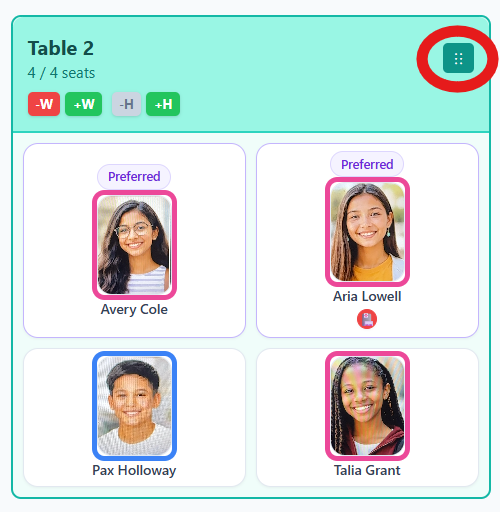
Use the Table Actions menu to open Seat Editor. Select Seat Editor from the menu.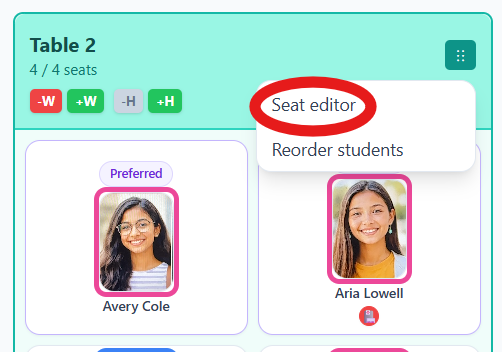
Seat Editor is listed in the Table Actions menu. -
Click Add Seat.
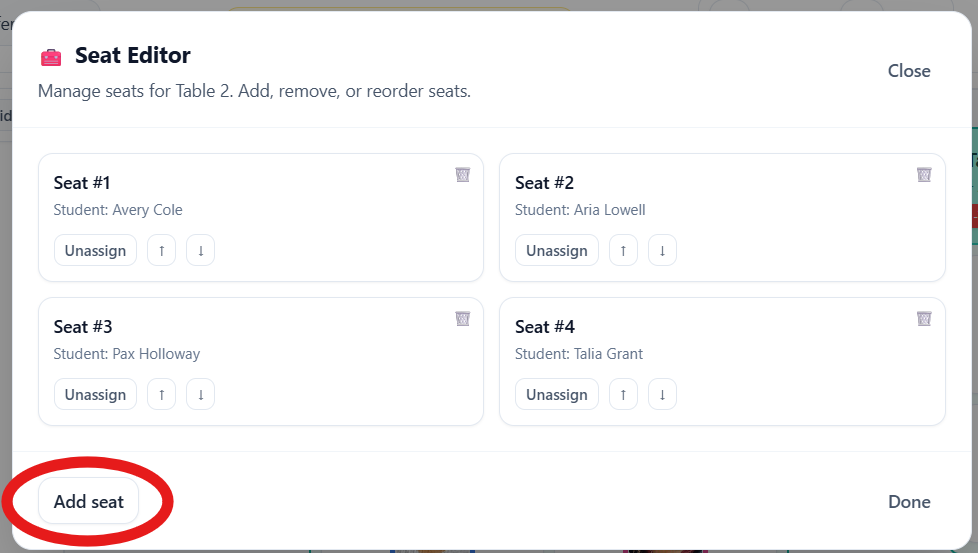
Use Add Seat to create another seat at the table. -
(Optional) Enter a seat number.
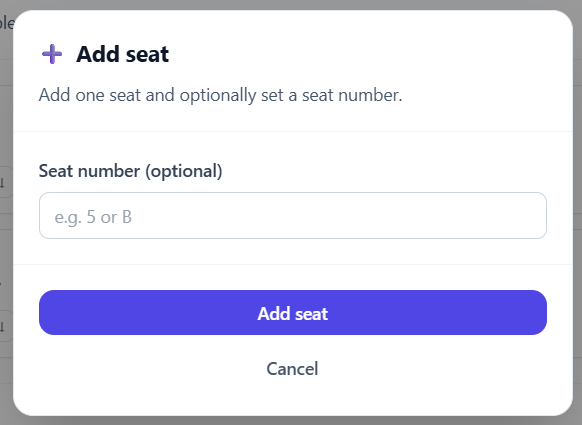
Seat numbers are optional when adding a new seat. - Click Add Seat to confirm.
Tip: To add seats permanently (for all classes), edit your seating arrangement in the Room Setup tab instead.