How do I move a table in a seating arrangement?
Use this when you want to move a table in your seating arrangement template. This is a global change that affects every class using that arrangement.
Move a table in the arrangement template
-
Go to the Room Setup tab.
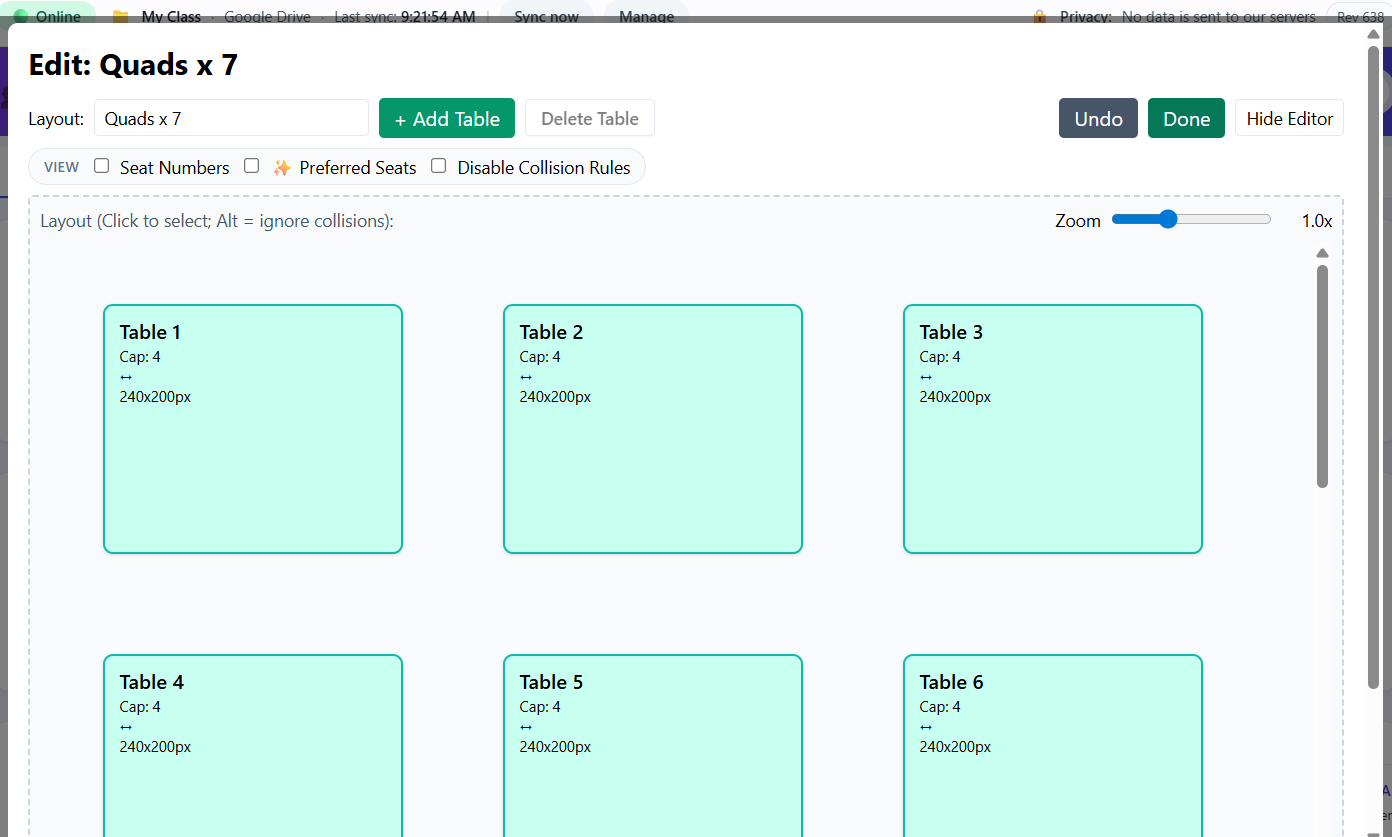
The Seating Arrangement Manager lives in Room Setup. -
Create a new seating arrangement, or click Edit on an existing arrangement.
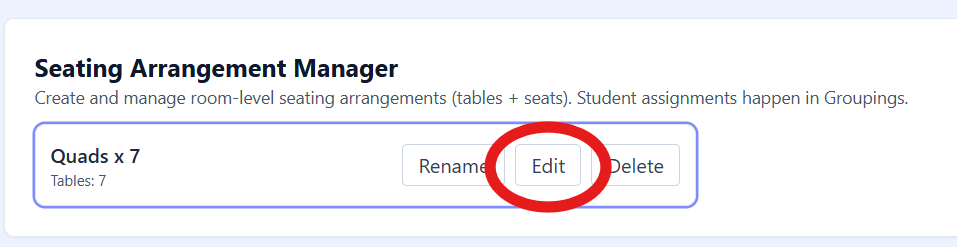
Select Edit on the arrangement you want to change. -
Click the table you want to move to select it.
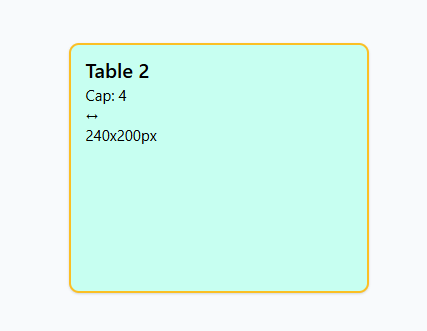
Selected tables show their selection outline. -
Move the table using the move controls at the top of the editor, or use the arrow keys on your keyboard.
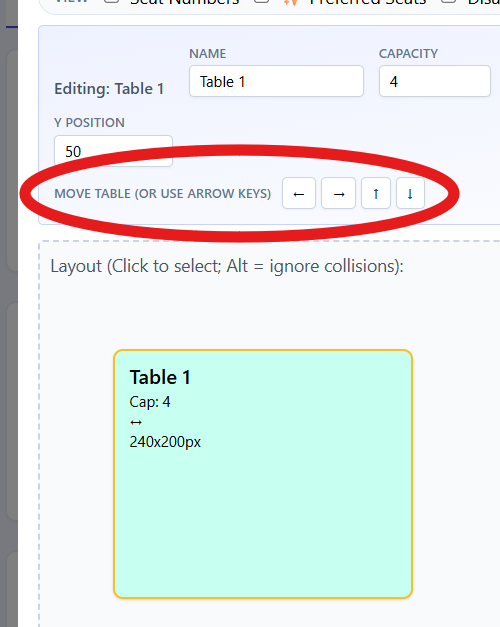
Use the move controls or arrow keys to reposition the table. - Click Done to close and save the seating arrangement.

Tip: If tables keep bumping into each other while you move them, turn on Disable Collision Rules so you can move tables through each other.