How do I use flashcards to learn student names?
Use this when you want to practice student names from student photos on your phone. Flashcards are available in ClassSeats Mobile.
Open Flashcards (Mobile)
- Open ClassSeats Mobile.
- Make sure you are connected to Google Drive and your class file is loaded.
-
Tap Flashcards in the top navigation.

Use the Flashcards tab to start practicing student names. - Select the correct class period (if needed).
Practice with flashcards
-
A student photo will appear on the flashcard.
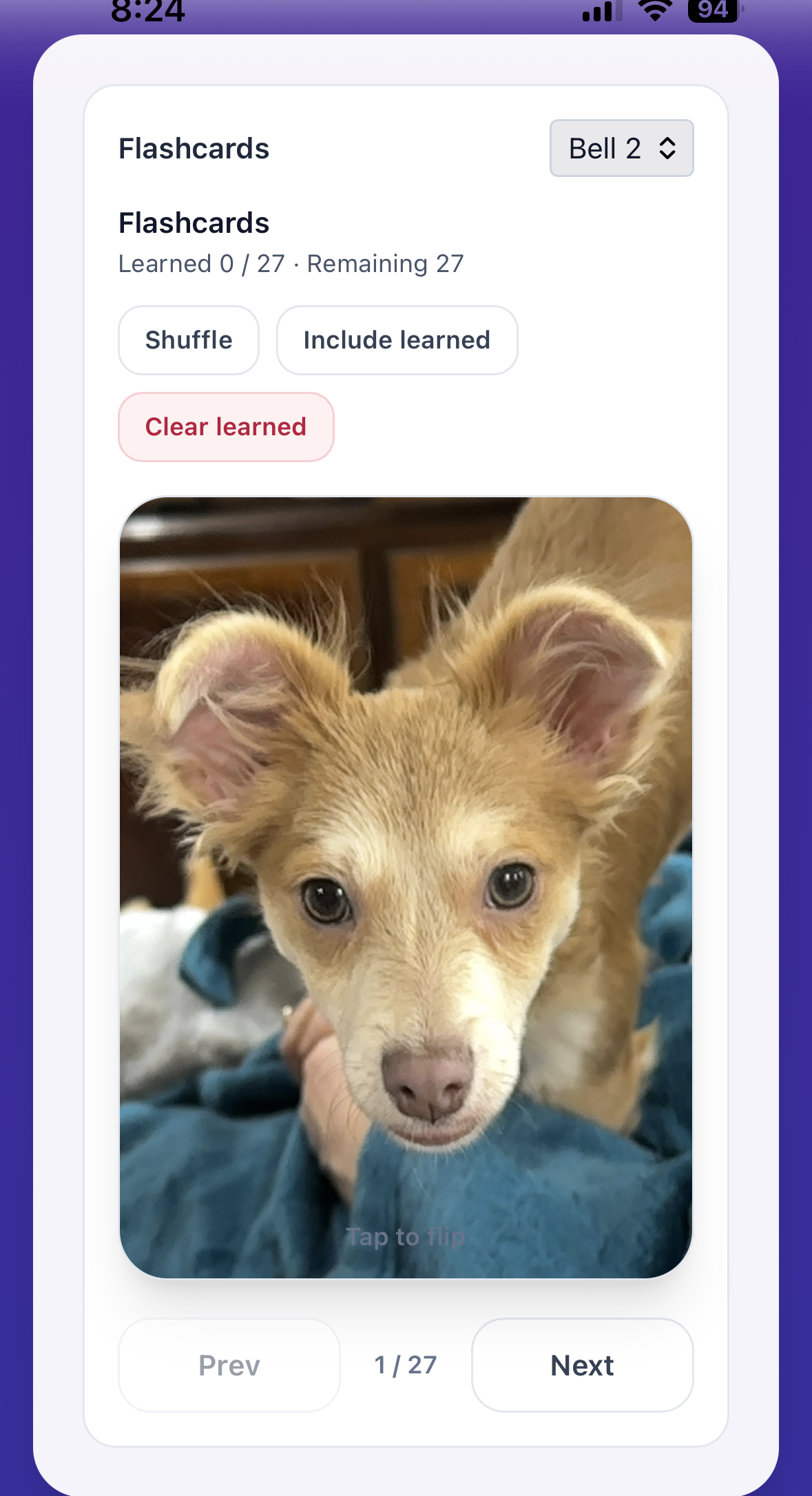
Flashcards show a student photo with controls like Shuffle and Include learned. - Tap the card to flip it and reveal the student’s name.
-
Choose one:
- I’ve learned this if you knew the student
- Still learning if you want to keep practicing this student
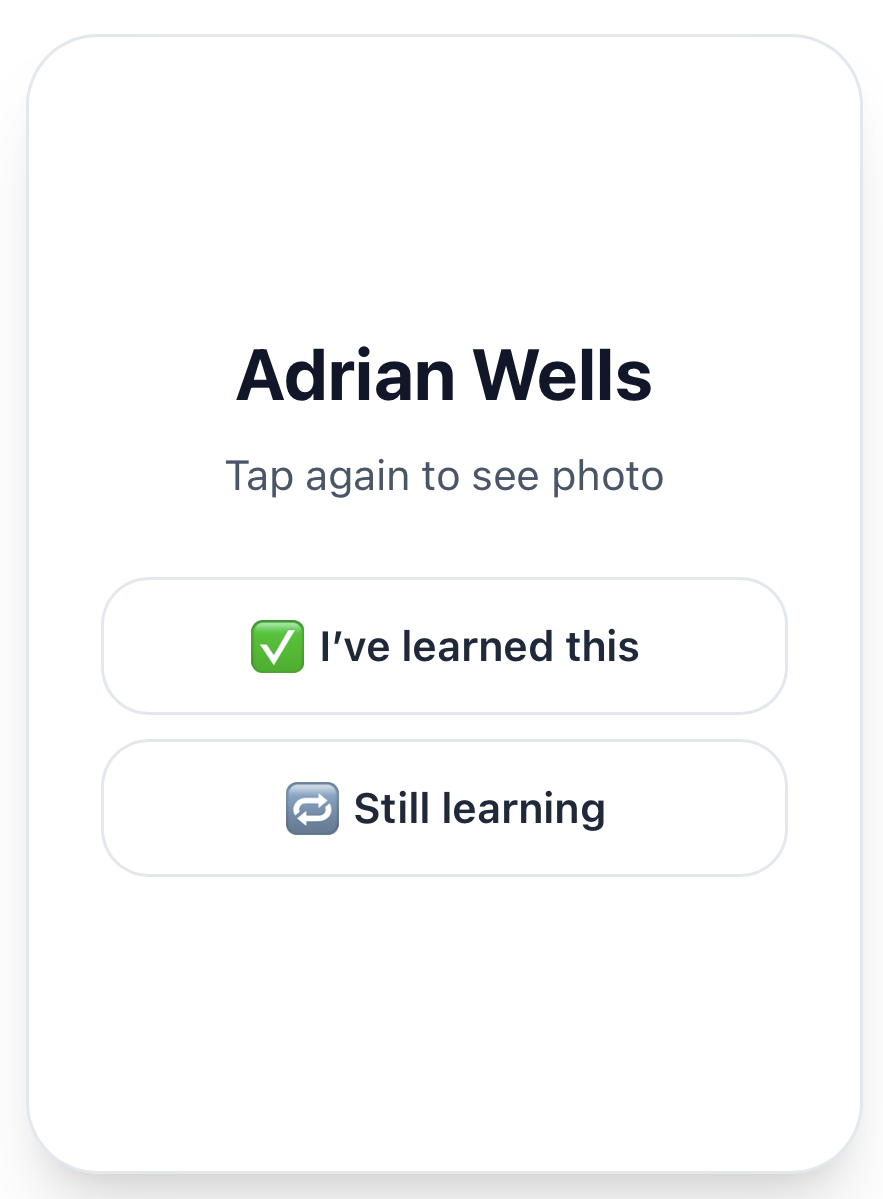
Mark students as learned or keep them in rotation.
Navigate and adjust your deck
- Tap Next (or Prev) to move through the deck.
- Tap Shuffle to randomize the order.
- Tap Include learned if you want to keep reviewing students you’ve already marked as learned.
- Tap Clear learned to reset your progress.
Tip: Practicing for just a few minutes at a time adds up fast.