How do I access ClassSeats on mobile?
Use this when you want to open ClassSeats on your phone or tablet and load your existing class file.
Open ClassSeats Mobile
-
In the ClassSeats header, click ClassSeats Mobile.

Use the ClassSeats Mobile button in the header to start mobile access. -
On your mobile device, either:
- Scan the QR code, or
- Visit mobile.classseats.app in your mobile browser.
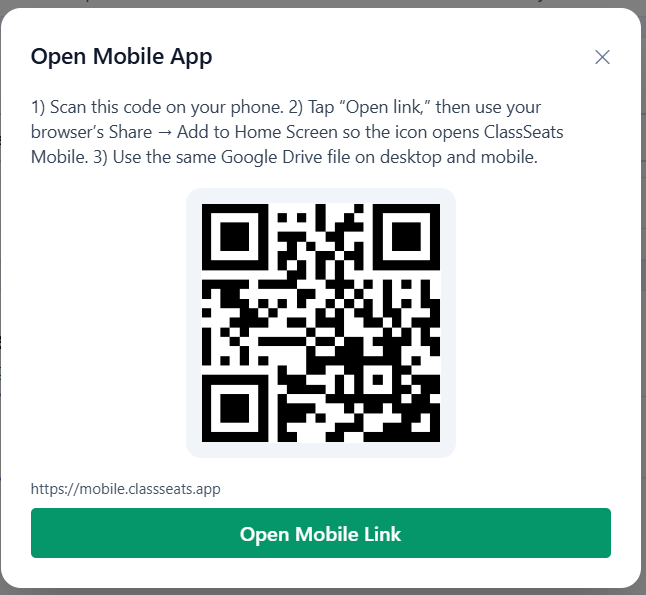
Scan the QR code to open ClassSeats Mobile quickly.
(Optional) Add ClassSeats to your home screen
-
Open your browser’s Share menu.

Use your mobile browser’s Share menu to access install options. -
Select Add to Home Screen (wording may vary by device).

Add ClassSeats Mobile to your home screen for fast access. - An icon will be added that opens ClassSeats Mobile directly.
Connect Google Drive
-
In ClassSeats Mobile, tap Connect to Google Drive.
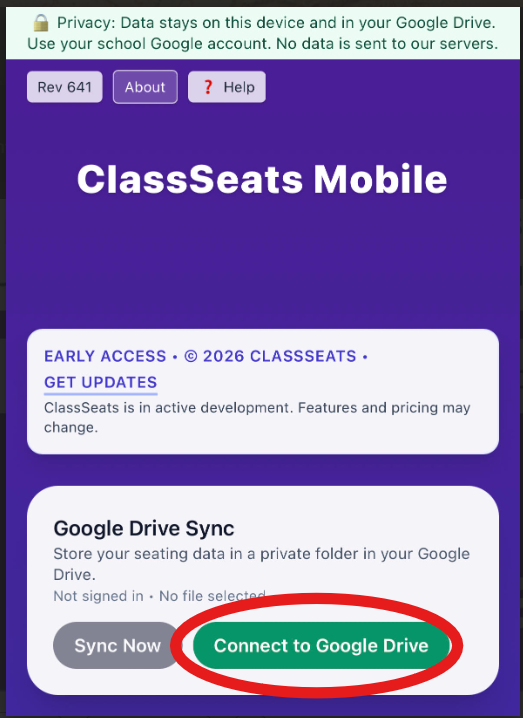
Connect Google Drive to access your saved class files. - Sign in to Google and allow ClassSeats to access your Drive when prompted.
Load your class file
-
The Manage Drive Files dialog will open automatically the first time you connect.

The Manage Drive Files dialog lists available class files. - Tap Refresh Cloud Files to load your available class files.
- Select your current working file from the list.
-
Tap the Load button (the button text will include the name of the selected file).

The Load button includes the selected file name.
Confirm the file is loaded
- Wait for the on-screen confirmation message that your file has been loaded.
- Close the Manage Drive Files dialog.
- Verify that your class data appears correctly in ClassSeats Mobile.
Tip: After the first connection, you can reopen Manage Drive Files from the Drive controls if you need to switch or reload files.