How do I set up seating for a music ensemble?
The Music Seating Suite is designed for large ensembles like band, orchestra, and choir. Setup happens in stages. Once your structure and tags are in place, assigning seats becomes fast and repeatable.
Step 1: Create a semicircle seating arrangement
In ClassSeats, the curved music layout is a Semicircle seating arrangement.
- Go to the Room Setup tab.
- In Seating Arrangement Manager, click Create Seating Arrangement.
- In Layout Type, choose Single Seat — Semicircle.
- Adjust seat count and spacing as needed, then save.

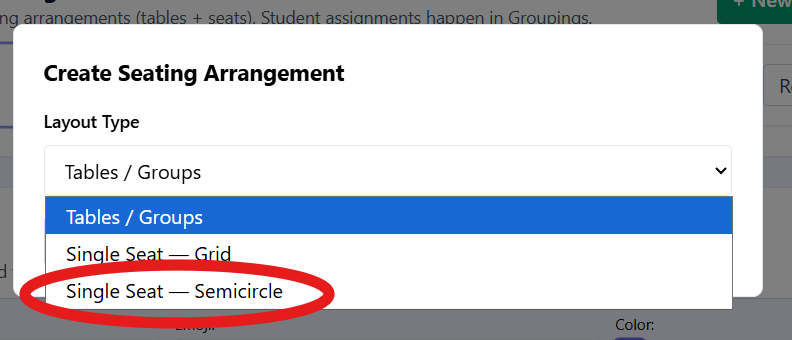
🛠 Coming Soon: How do I create a semicircle seating arrangement?
Step 2: Create student tags for sections
Tags represent sections such as Flute, Clarinet, Violin 1, Alto, Percussion, and more.
- Go to the Students tab.
- Open the Student Tags section.
- Create a tag for each section or voice part.
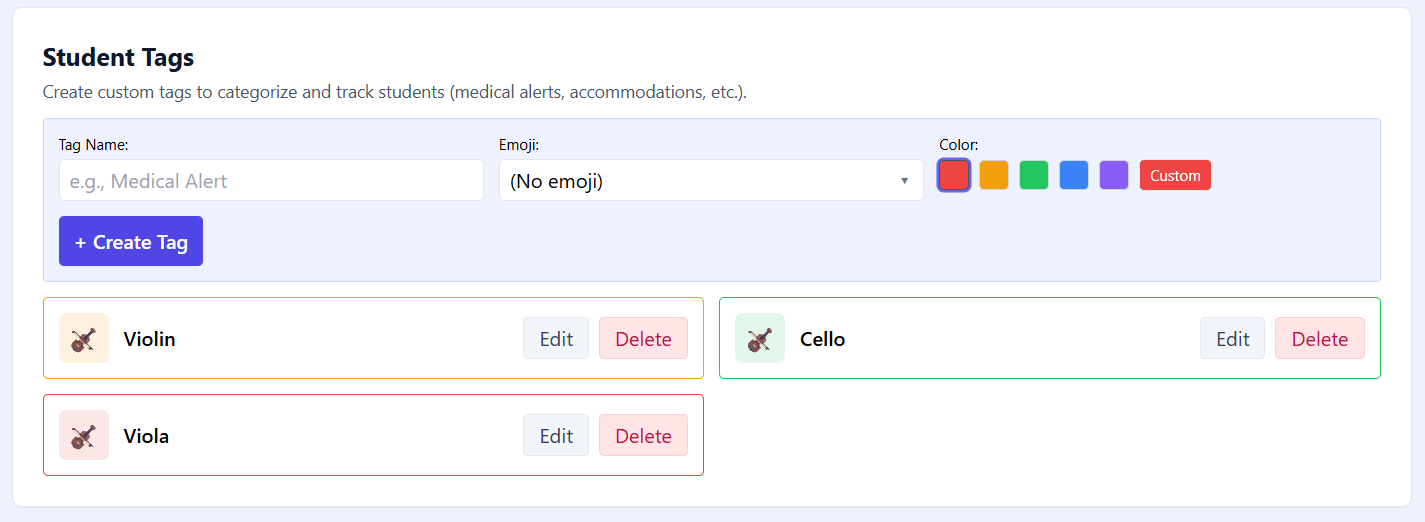
🛠 Coming Soon: How do I create student tags?
Step 3: Apply tags to students
Apply section tags directly from student cards.
- Go to the Students tab.
- Scroll to each student’s card.
- Apply the appropriate tag(s).
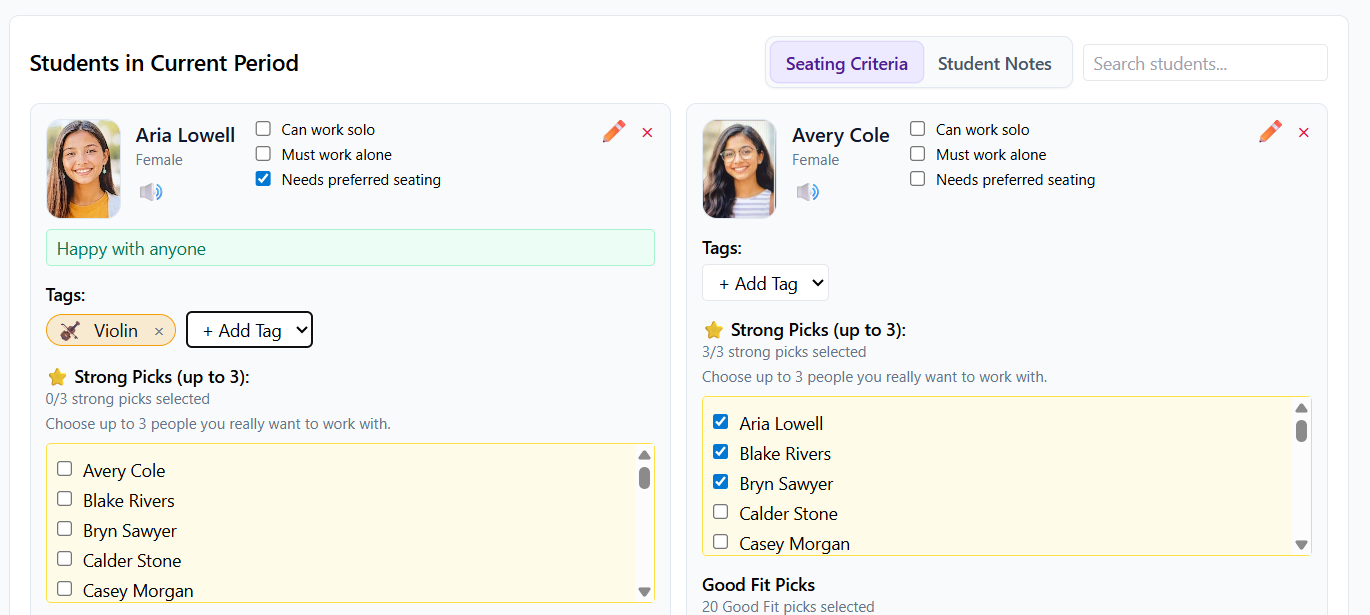
🛠 Coming Soon: How do I apply tags to students?
Step 4: Assign seats using Tag-Based Seating
Tag-Based Seating lets you “paint” seats by section, then place students into those sections.
- Go to the Groups tab.
- Select Use Seating Arrangement.
- Choose the correct seating arrangement from the dropdown.
- Check Tag Based Seating.
- Click Generate Groups.
- Select a tag, then paint seats using that tag’s color.
- Repeat for each section, then fine-tune individual placements if needed.

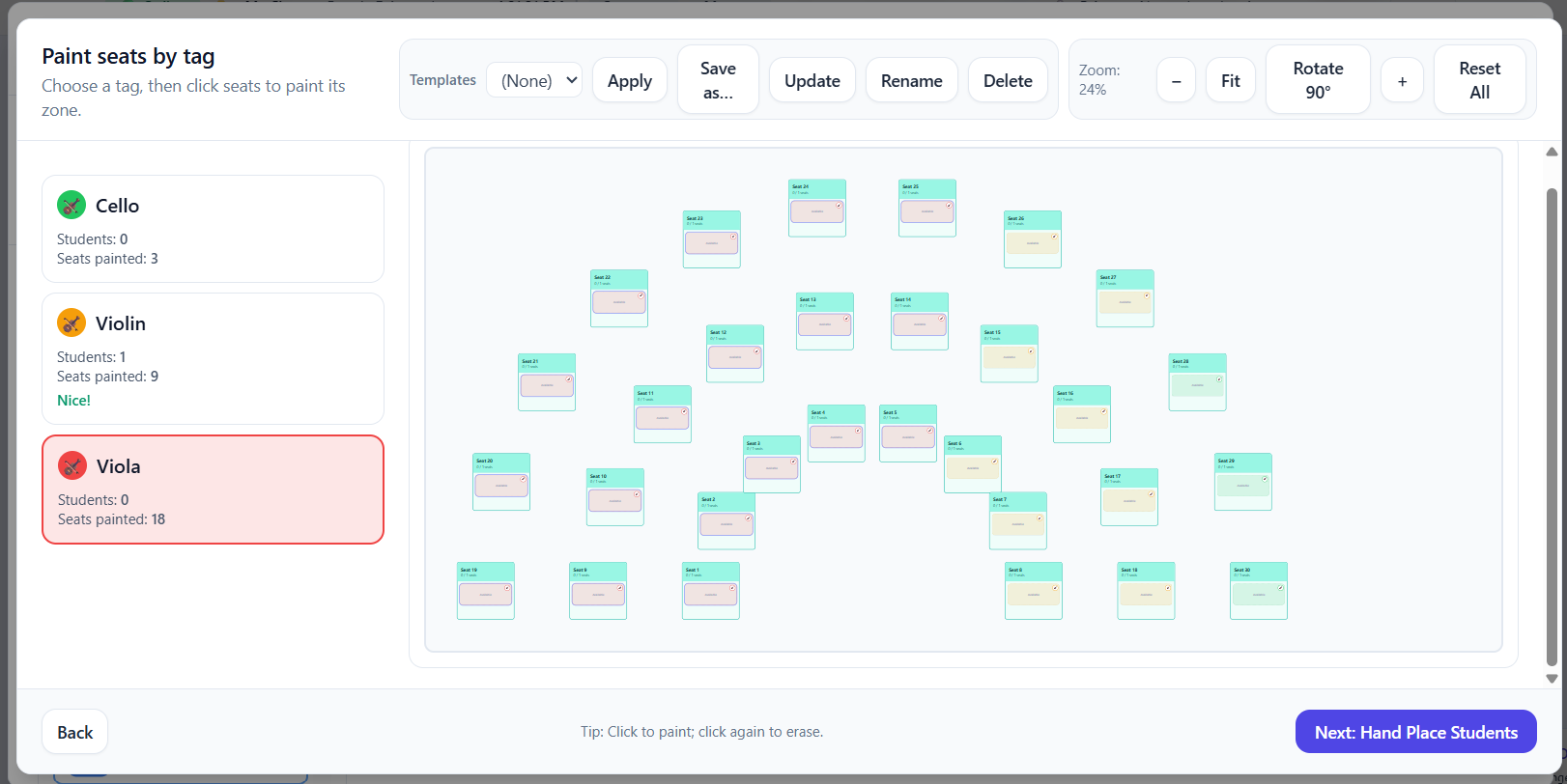
🛠 Coming Soon: How do I assign seats using Tag-Based Seating?
Step 5: Print a large seating chart
If your ensemble is large, Tiled (Poster) Printing can print your chart across multiple pages.
🛠 Coming Soon: How do I print a large seating chart using tiled printing?