How do I fix name mismatches when importing student picks?
When you import student picks, ClassSeats tries to match names from the spreadsheet to your roster. If a name doesn’t clearly match, you’ll be asked to review it before anything is applied.
When this happens
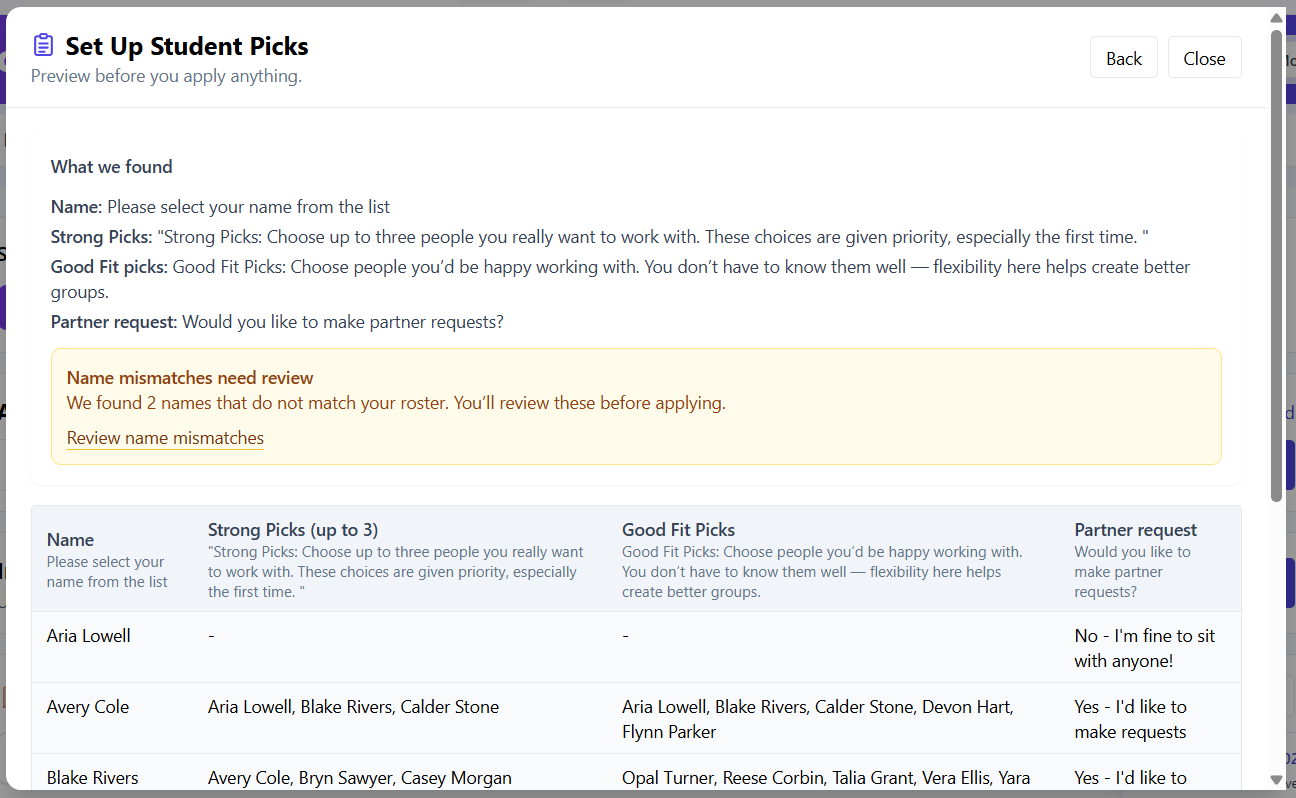
You’ll see a message like Name mismatches need review during the import preview.
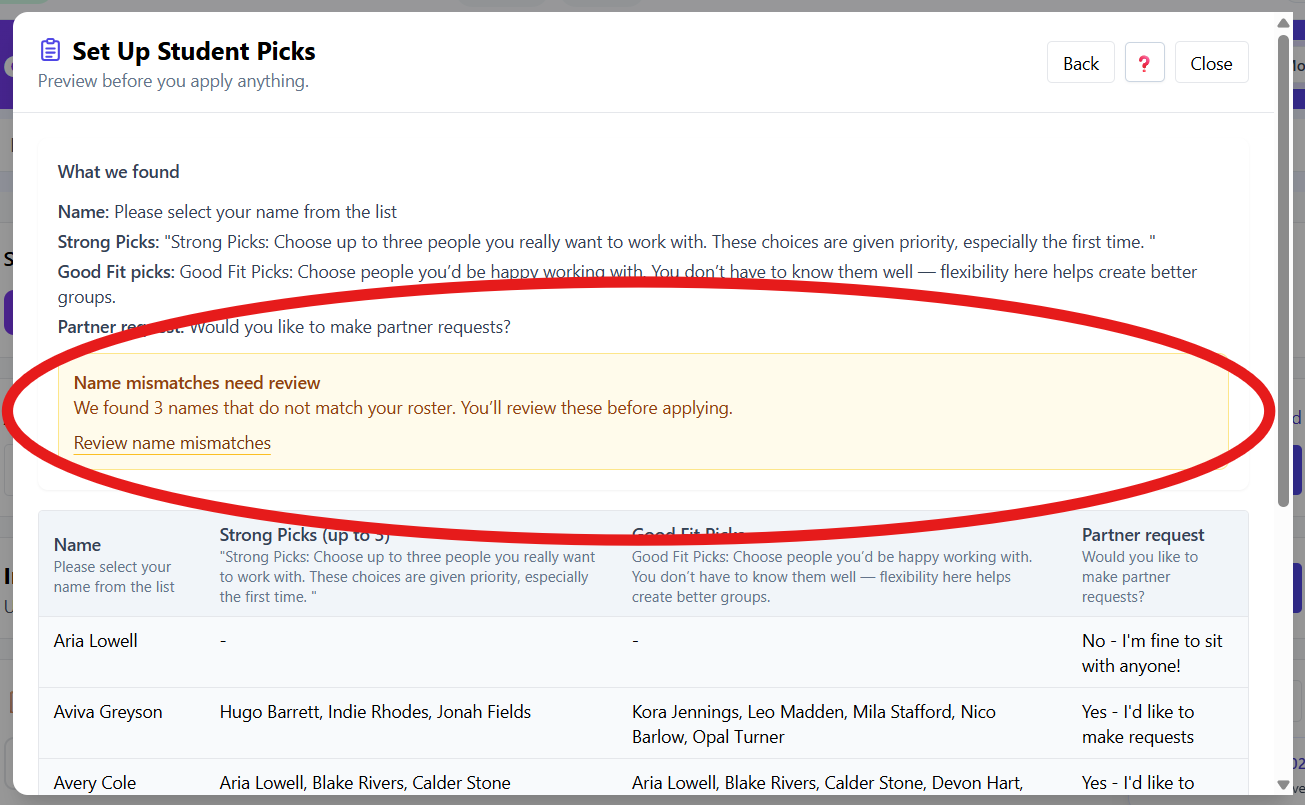
This usually happens when:
- a student typed their name slightly differently
- a nickname was used
- there’s a spelling or formatting difference
- the student isn’t currently on your roster
Nothing is applied until you review these names.
Open the name mismatch review
- Start importing student picks as usual.
- When you see the warning, click Review name mismatches.
This opens the Resolve name mismatches screen.

Review each mismatched name
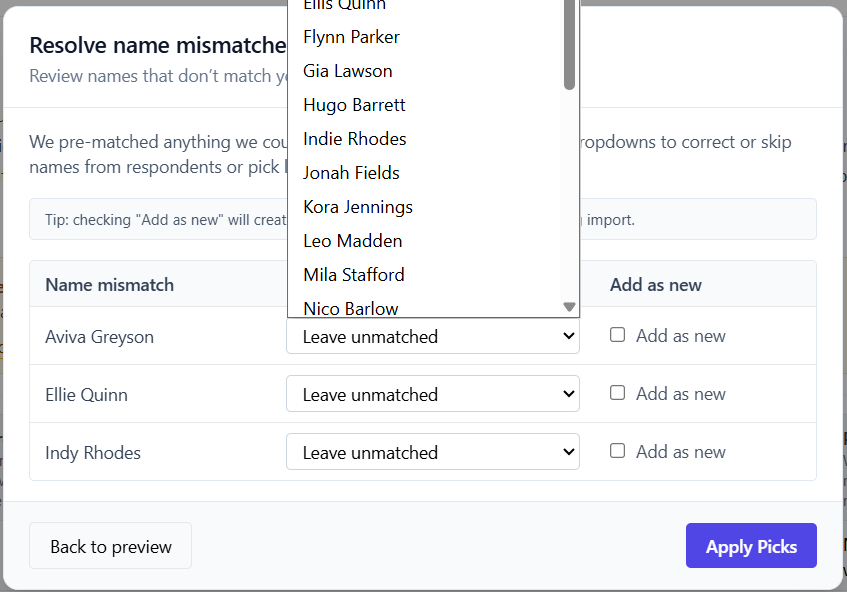
Each row shows:
- the name from the spreadsheet
- a dropdown to match to your roster
- an option to Add as new
Match to an existing student
Use the dropdown under Match to roster to select the correct student.
This is the best choice when:
- the name is a clear match (for example, “Ellie Quinn” → “Ellis Quinn”)
- the student already exists in your roster
Add as new
Check Add as new if this is a student who is not already on your roster.
ClassSeats will:
- create a new student for this period
- apply their picks to the new student

Leave unmatched
If you’re unsure or want to skip a name for now, leave it as Leave unmatched.
When you do this:
- that student’s picks are skipped
- no student is created or updated for that row
Apply the fixes
- Review all mismatched names.
-
Click Apply Picks.
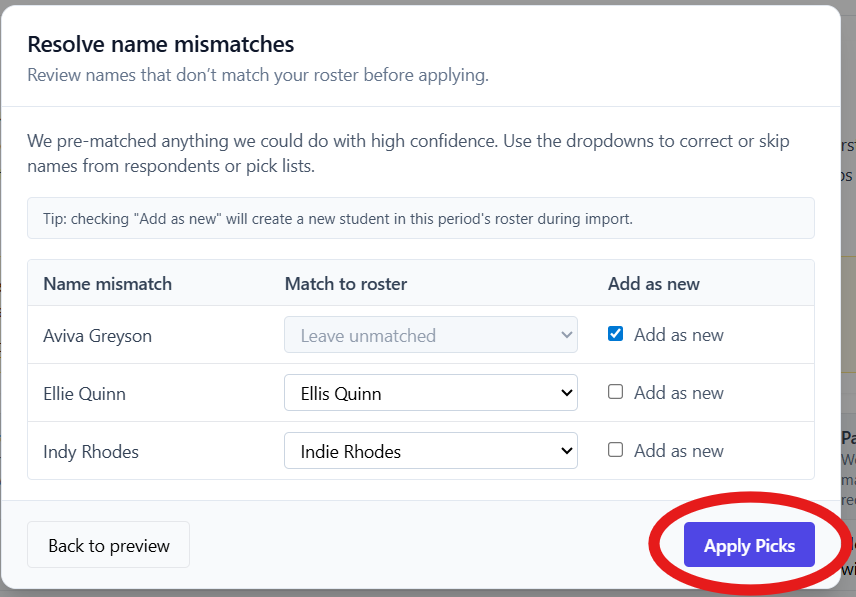
Apply Picks finalizes the mismatched name decisions.
Only after this step will the student picks be applied.