Adding students to a class
Once you've created a class, you can add students one at a time or paste a class list from almost any source.
Step 1: Choose or create your class
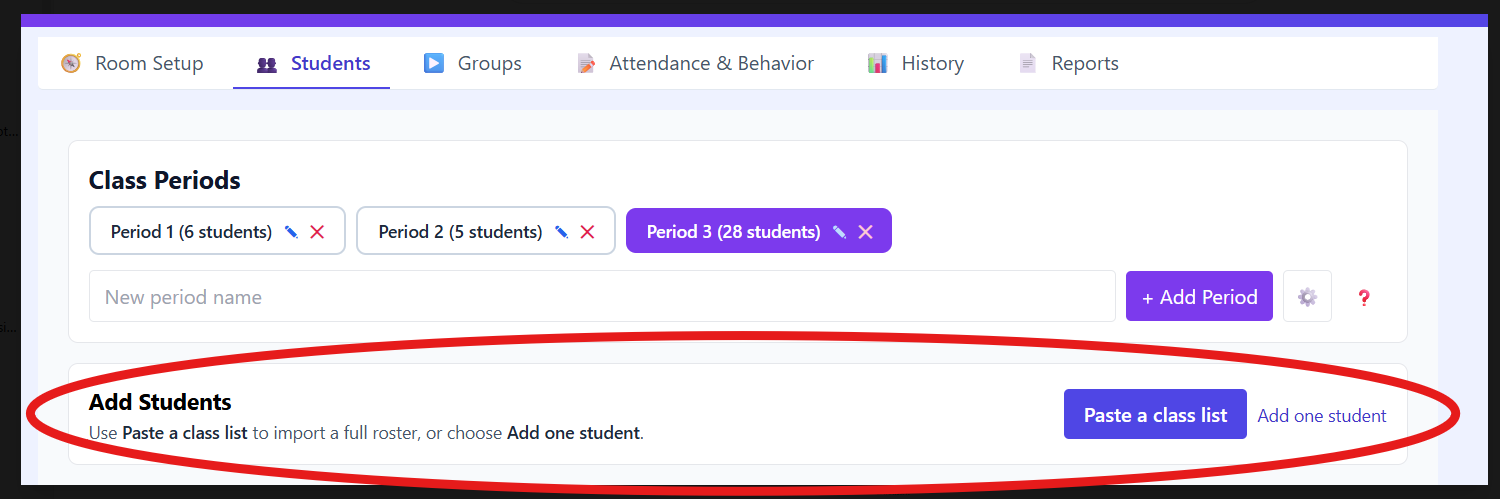
- Open the Students tab.
- Select an existing class period from the Class Periods row.
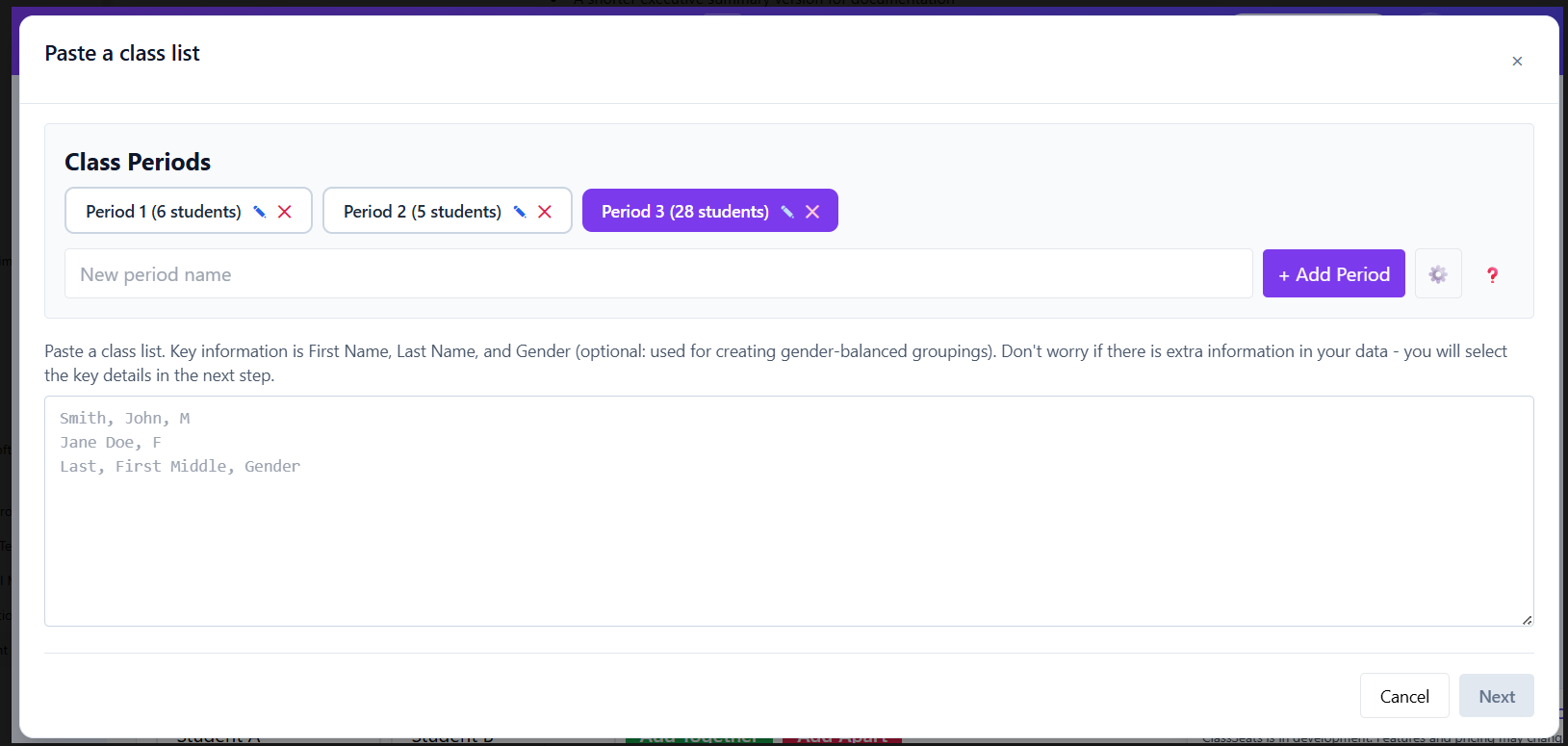
You can create a class period on the Students page using + Add Period, or create one inside the Paste a class list window if you realize you need it while importing.
In Add Students, Paste a class list is the primary option and Add one student is the secondary option.
Option A: Add one student
Use this when you only need to add a few names.
- In Add Students, click Add one student.
- Enter the student's name.
- If needed, choose a gender option.
- Click + Add.
Option B: Paste a class list (recommended)
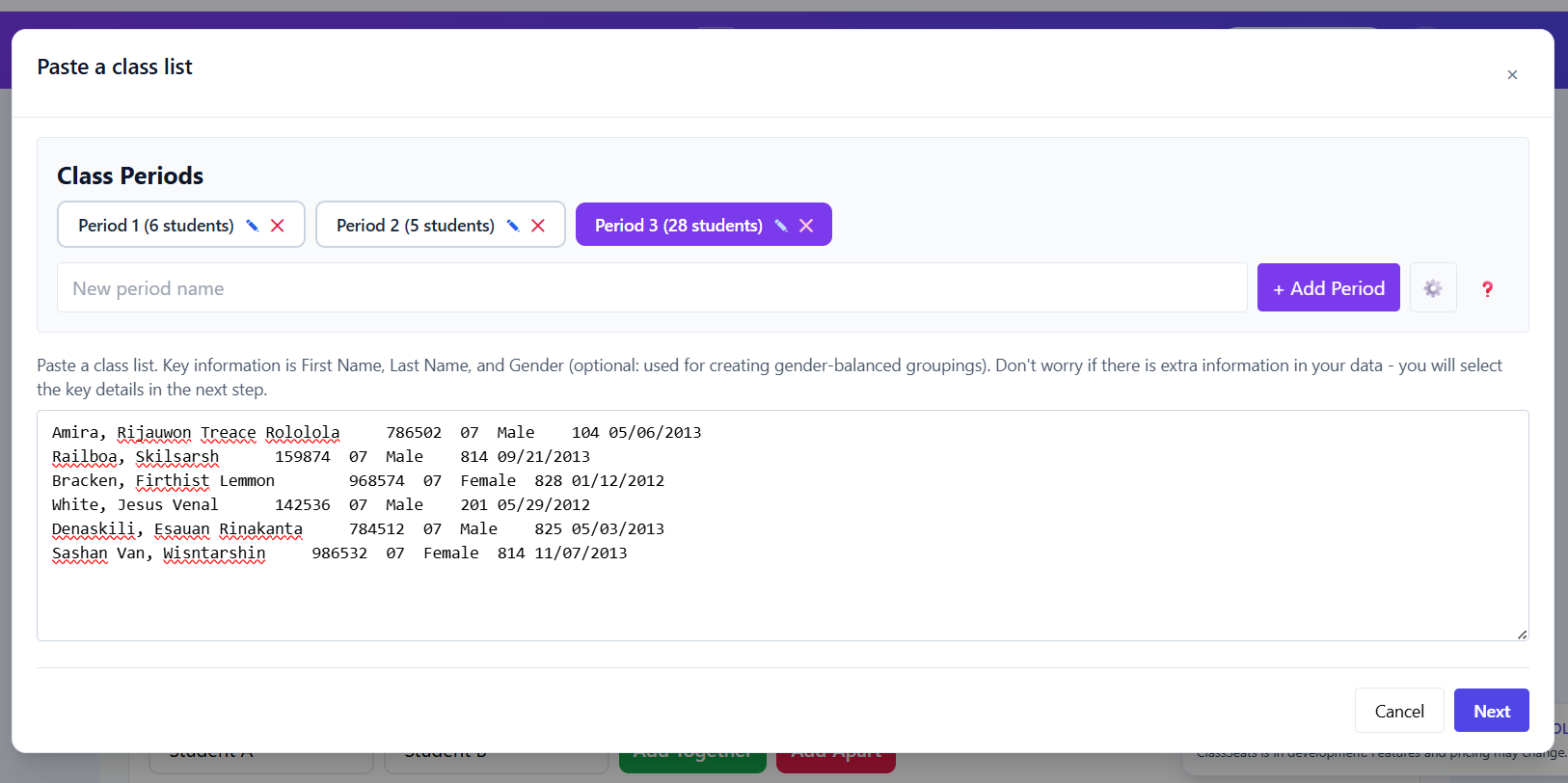
This is the fastest way to import a full roster. You can paste from a spreadsheet, SIS, email, or another list.
Step 1: Paste your list
- Click Paste a class list.
- Paste your list into the box.
- Click Next.
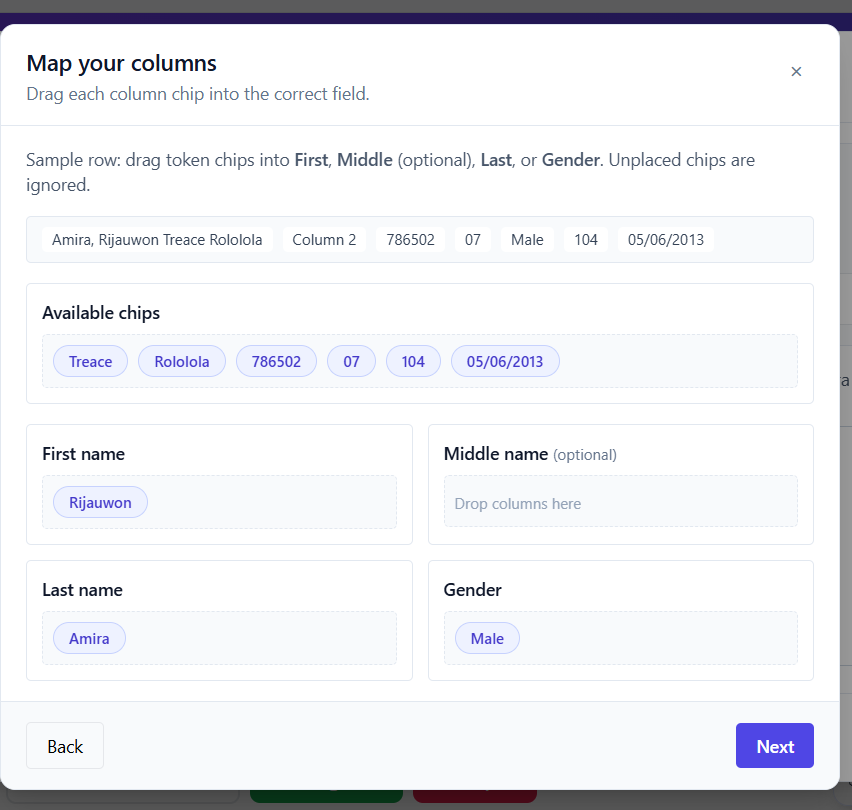
Step 2: Map your columns
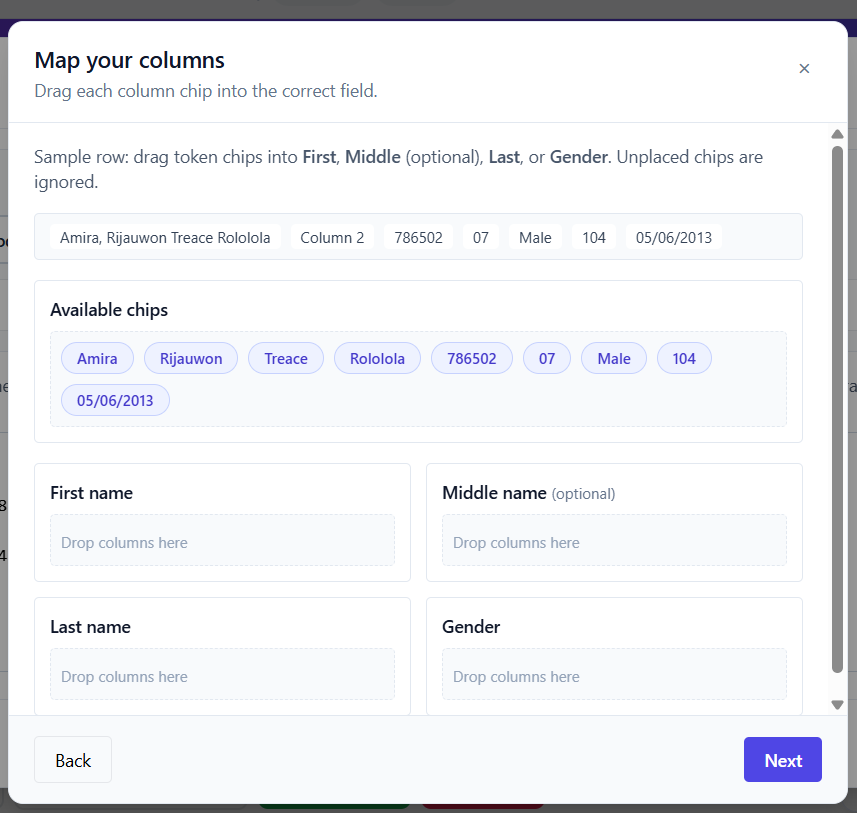
Drag chips into First, Middle, Last, and Gender. Chips you leave unplaced are ignored.
Step 3: Review and import
Before importing, you can edit names in the table, include middle names, choose gender only if you want gender-balanced groupings, remove rows, and swap first/last names when needed.

Tips
- Extra information in your pasted list is fine. You will choose what matters during mapping.
- Gender is optional and is only used for gender-balanced groupings.
- If first and last names are flipped, use Swap first/last in the review step.
Do I need students before setting up my room?
No. You can build seating arrangements first and import students later.